A client brief review run by email tends to end the same way: three attachments called final, a reply-all with the client's yes, and three weeks into delivery nobody can show which wording was agreed. In an Atwork page, the review happens inside the brief itself. Your team comments on the passage in question, resolves each thread once the text reflects the decision, and saves the version the client agreed to under a name. That version stays in the page's History while the brief keeps changing, so the signed-off wording is one click away.
Why does a client brief review by email go wrong?
Feedback comes loose from the sentence it is about, the document forks into attachments, and the client's yes ends up attached to nothing you can open later. Every round adds a copy and a thread. By the time delivery starts, the agreed text exists only as something you rebuild from an inbox.
- Comments without an address. "See paragraph 3, second bullet" stops pointing anywhere the moment someone adds a paragraph above it.
- Parallel copies. The strategist edits v3 while the account lead answers the client on v2, and on Friday someone merges the two by hand.
- A yes with no version. "Looks good, go ahead" arrives as a reply to the wrong attachment, and nobody records what it said yes to.
What the approval itself must contain is covered in why client revision rounds multiply; this piece is about the document it points at.
What should a brief or SOW review leave behind?
Three things: the settled text, a record of each decision next to the clause it changed, and one named version that is the one the client agreed to. A review that leaves only the first turns the next scope disagreement into a search through email.
| What the review leaves | Email + attachments | Shared doc | Atwork |
|---|---|---|---|
| Where feedback sits | In replies, away from the text | On the passage | On the passage |
| Open questions | Whoever reread the thread last | Open comments | Open tab, with the count in the page header |
| The agreed version | The attachment someone remembers | Version history, if someone named it | A named version that History always keeps |
| Edits after sign-off | Invisible | Version history | History lists who edited in each span |
| The client comments directly | Yes, by reply | Yes: a link is enough | No: page comments are for your team |
How do you comment on one passage of a brief?
Select the text, choose Add comment and write. The thread sits on that passage, so it stays with the clause when paragraphs move around it. Teammates reply in the thread, and an @mention sends that person a Mentions notification that opens the page at the thread.
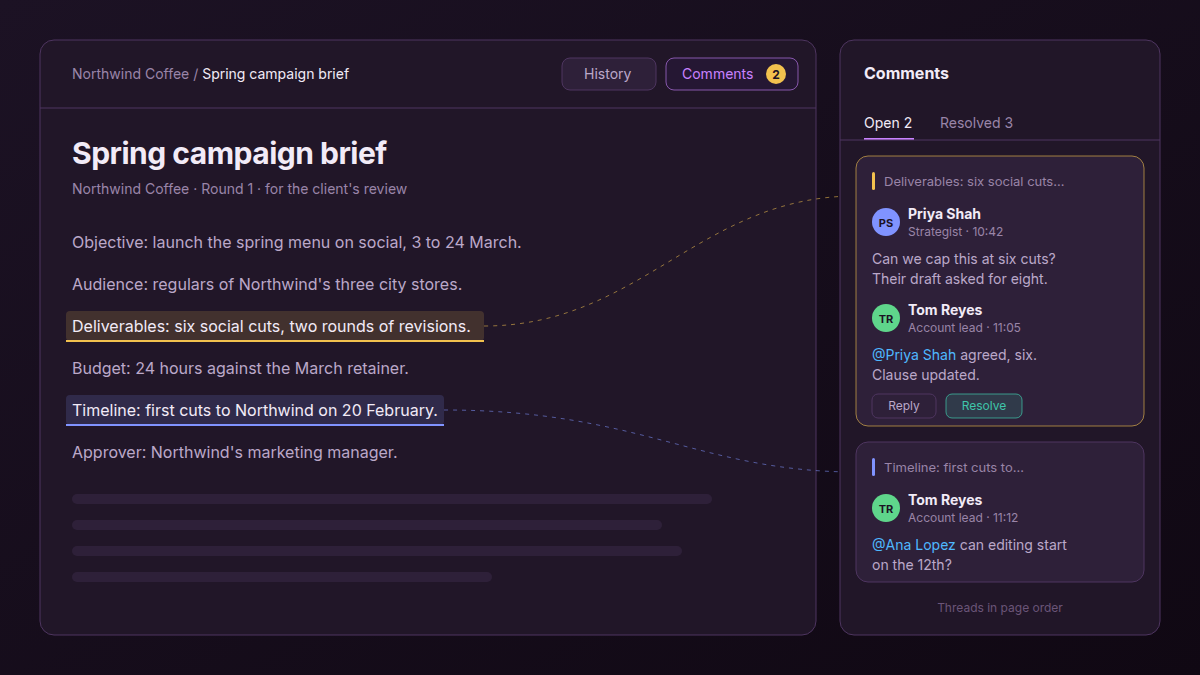
- Select the clause, for example "Deliverables: six social cuts, two rounds of revisions".
- Choose Add comment in the toolbar that appears over the selection.
- Type @ and pick the person who has to answer. Only people who can open the page are notified, so check the person has access first.
- Reply in the thread. Everyone who has already commented in it hears about new replies.
Keep one question per thread, and make it a closed one: approve this wording, or name the change. "Thoughts?" opens a round. "Can we cap this at six cuts?" closes one.
When should a comment thread be resolved?
When the page text reflects the decision, not when the conversation goes quiet. The Comments button in the page header shows how many threads are open, and the panel's Open and Resolved tabs list them in page order. The open list is exactly what is left of the round.
Anyone who can comment can resolve or re-open a thread, so agree on a rule before the first round: whoever raised the point resolves it, or the round's owner does. Resolving is not deleting. Resolved threads stay on the Resolved tab as the record of why the clause reads the way it does, which is what you want when the client asks why the brief says six cuts.
An open thread is an unanswered question about scope. Count them before you call the round finished.
How do you keep the version the client signed off?
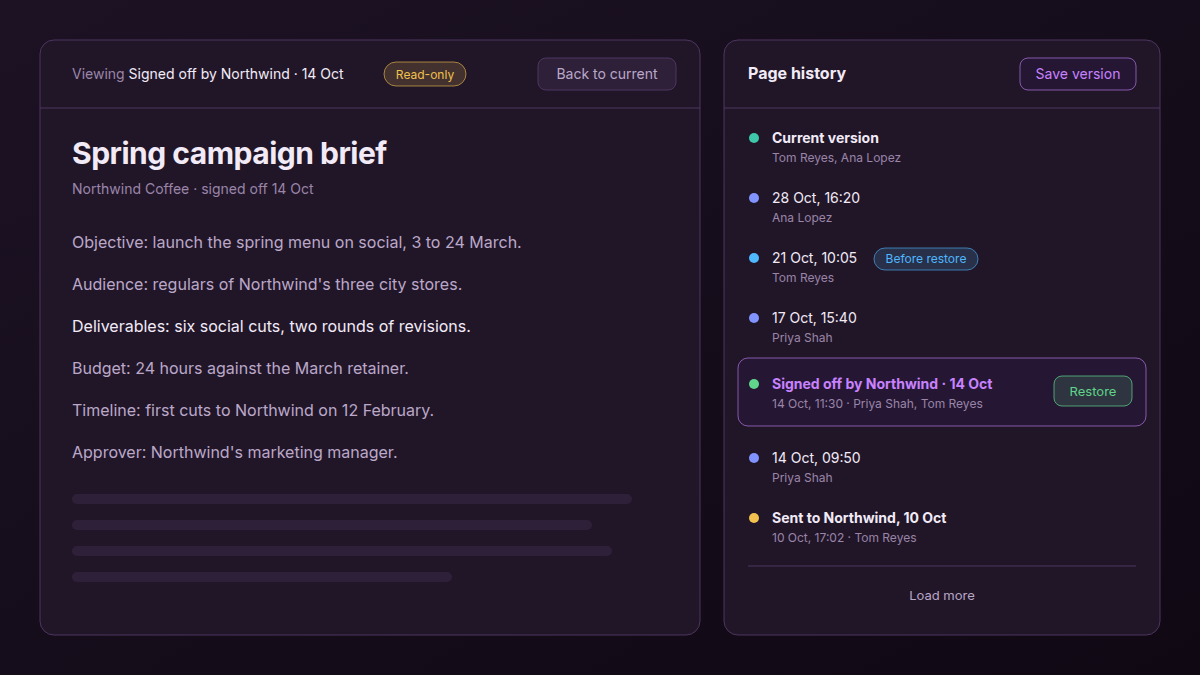
At the moment of the yes, open History in the page header, choose Save version and give it a name such as "Signed off by Northwind, 14 Oct". Pages also save versions automatically while you edit, but older automatic versions are thinned out over time. Named versions are kept.
| Version | When it is saved | How long History keeps it |
|---|---|---|
| Automatic | While you edit, at most one every 10 minutes | Every one for 7 days, then the newest per day until 30 days, then the newest per week |
| Named | When you choose Save version and give it a name | Always |
| Before restore | Just before you restore an older version | Always |
Name it in the client's words
A version without a name shows only its date, and in a month nobody will remember which date mattered. Put who said yes, when, and to what in the name: "Signed off by Northwind, 14 Oct, six cuts" beats "v4 final". A name can run to 120 characters.
Read it, or restore it?
Opening a version shows it read-only, with Back to current to return. That is usually all you need: read the clause, quote it in the scope conversation, go back. Restore is for when the brief really has to go back to what was signed. It asks first, then saves the current page as a Before restore version, so nothing is lost. Anyone who can view the page can open its History; saving and restoring need edit access.
What happens when the brief changes after sign-off?
The signed version stays in History, and History lists who edited the page in each span. A later edit is then visibly a change against the agreement, which makes it a scope conversation instead of quiet drift. There is no side-by-side compare: open the signed version, read the clause, and go back to current.
Briefs change during delivery, and most changes are fine. The costly ones are the changes nobody announces, like an extra cut agreed in a stand-up. With the signed wording a click away, the account lead can raise it as a change request rather than a dispute; the change request nobody sends covers that conversation.
Once the brief is signed, the work starts. Turn the client brief into tasks with an AI agent, and run the delivery in the Agency Client Delivery template: its Briefs sheet records budget hours and who signed each brief off, and every deliverable links back to its brief.
Can the client comment on the brief in Atwork?
No. Page comments are for people in your workspace who have access to the page, view-only members included. Guests and portal customers cannot read or add them. The client reads the brief the way you already send it out and gives the yes, and someone on the team carries each of their points into the thread on the clause it is about.
Two habits help. Save a version when the brief goes out ("Sent to Northwind, 10 Oct"), so the text the client is reading stays fixed while the team keeps editing. And give the client one place to answer: a portal customer can comment on their project's row in your client portal, and a Comment added workflow set to comments written by customers can turn that comment into a task.
If your client lives in Google Docs, a doc link is the lower-friction way to collect their comments. Use it, then move each decision into the page and save the agreed version there.
Frequently asked questions
Does restoring an old version delete the newer edits?
No. Before it restores anything, Atwork saves the page's current content as a Before restore version, and History never thins those out. If the restore was a mistake, open the Before restore version and restore that one to get the newer text back.
How do you prove which version of a brief the client approved?
Save a named version the moment the client says yes, with who, when and what in the name, and keep their written yes, such as the email, alongside it. Named versions are never thinned out of the page's History, so months later you can open the exact wording the client agreed to and quote it.
Should the client comment in the same document as the team?
Not necessarily. The team's threads often carry effort, pricing and opinions that are not for the client. Keep the internal review in the page, send the client the settled text, and bring their answers back into the right threads.
Do the people you mention in a page comment get notified?
Yes. An @mention sends that person a Mentions notification that opens the page at the thread. Replies notify everyone who has already commented in the thread, under the Page comments notification category. A mention reaches only people who can open the page, so check the person has access before you mention them.
Can the client comment on a brief in Atwork?
No. Page comments are for workspace members who have access to the page, including view-only members; guests and portal customers cannot read or add them. A portal customer can comment on a row you share in your portal, and a teammate carries that feedback into the thread on the right clause.
Can you see who changed the brief after it was signed off?
Yes. History lists who edited the page in each version's span, so edits made after the signed-off version appear with names next to them. To see what changed, open the signed version and read the clause against the current page; there is no side-by-side compare.
Where do you start?
With the next brief that goes out. Put it in a page, run the team's review in threads on the passages, resolve each thread when the text says what was decided, and save the version the client agrees to under a name they would recognise.
Put your next brief in a page, and save the version the client agrees to by name. Start free