How to track time on a task with the Timer field
Start a timer on a task while you work and pause it when you stop: Atwork adds up the time on the task. Anyone who can edit the task can run its timer. Time tracked on a Tasksheet also shows in your Planner, on Week and Review, and on a goal's Time tab.
Before you start
- The task needs a Timer field. Every sheet made with New Tasksheet has one. See Create a sheet.
- On a worksheet, either open Config → General and click Convert to Tasksheet next to Sheet type, or add a field and pick Timer under Time & Tracking. Both need permission to change the sheet's structure.
- A Timer field on a worksheet keeps the time on the row only. It doesn't reach Week, Review or your goals.
- Starting and pausing a timer changes the task, so you need permission to edit rows on its sheet.
Start and pause a timer
- Open the Planner from the dock and go to Today.
- Hover over the task and click the play button at the right of its row.
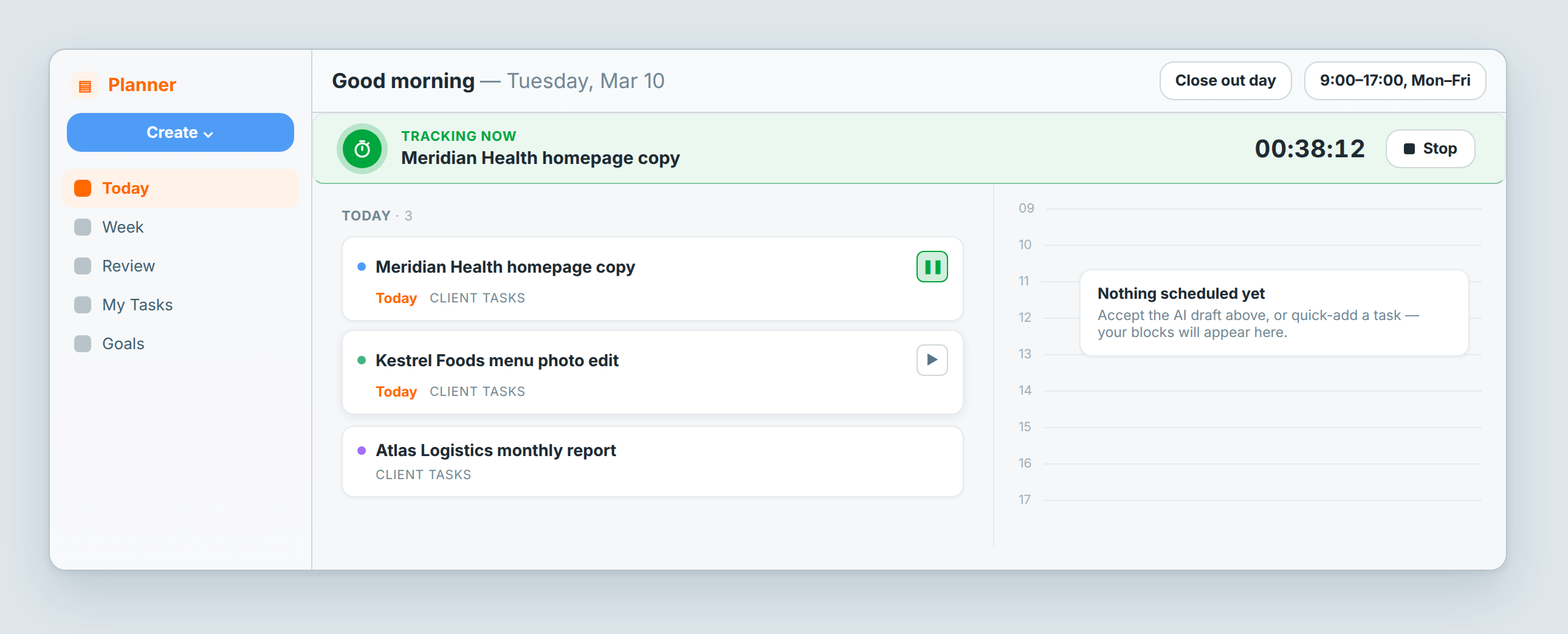
- Work on the task. A Tracking now card at the top of Today shows the task's name and the time since you started.
- When you stop, click Stop on the card, or the pause button on the task's row.
The time is added to the task's Timer field. To carry on later, click play again. Each start begins a new session, and the field adds them all up.
You can also start and pause a timer from:
- the task itself: open it and click the play or pause button in its Timer field;
- the Todo and In Progress cards in My Tasks: hover over the card to see the play button.
Stop on the card pauses the timer. There is no separate stop: you pause, and start again when you go back to the task.
What does the Tracking now card show?
- The task's name. Click it to open the task.
- The elapsed time since you last started this timer. It is the current session, not the task's total.
- Stop, which pauses the timer.
While a timer runs, the Planner tile in the dock shows a timer badge. If more than one of your timers is running, the card shows one of them.
See a task's sessions
Open the task. The Timer field shows the task's total in hours and minutes, such as 01:25.
- Click ⋮ next to the time to list every session: its number, when it started and when it ended, or Working while it runs.
- Open the History tab to see each start as Timer started and each pause as Timer paused, with the task's total at that point.
Where does tracked time show up?
| Where | What it shows |
|---|---|
| Planner → Week | Logged: your tracked time this week. Tracked time this week: the same time, day by day. |
| Planner → Review | Hours tracked: your tracked time this month, marked "from your timers". See Close out your day and review your month. |
| A goal's Time tab | Tracked time, Avg / active day, Tasks with time, a Daily breakdown chart and Top tasks by time, for the tasks whose Goal field is set to that goal. |
- These pages count your own sessions, the ones you started. A teammate's timer on the same task counts for them.
- A session counts once it is paused. A running timer adds nothing until you pause it.
- Only tasks on a Tasksheet are counted.
- A goal's Time tab counts time between the goal's Starts on and Ends on dates, or the last four weeks for a goal without dates. Time tracked on a task before you linked it to the goal counts too. See Goals.
Can I edit tracked time?
No. You can't change when a session started or ended, or type in time by hand. Every minute between a start and a pause counts, so pause the timer when you stop working.
What if I left a timer running?
Pause it as soon as you notice: click Stop on the Tracking now card, the pause button on the task's row in Today, or the pause button in the task's Timer field. The time it ran until then stays in the total, and you can't trim it.
The Tracking now card and the dock badge can miss a timer that has been running since an earlier day. To check a task, open it: a pause button in its Timer field means its timer is still running.
Why isn't my time on Week or Review?
- The timer is still running. Time counts once you pause it.
- The task isn't on a Tasksheet. A worksheet's Timer field keeps time on the row only.
- Someone else ran the timer. Week and Review count only the sessions you started.
- On a goal's Time tab: the task's Goal field isn't set to that goal, or the time falls outside the goal's dates.
Related: Close out your day and review your month · The Planner: Today, Week and My Tasks · Goals · Create a sheet