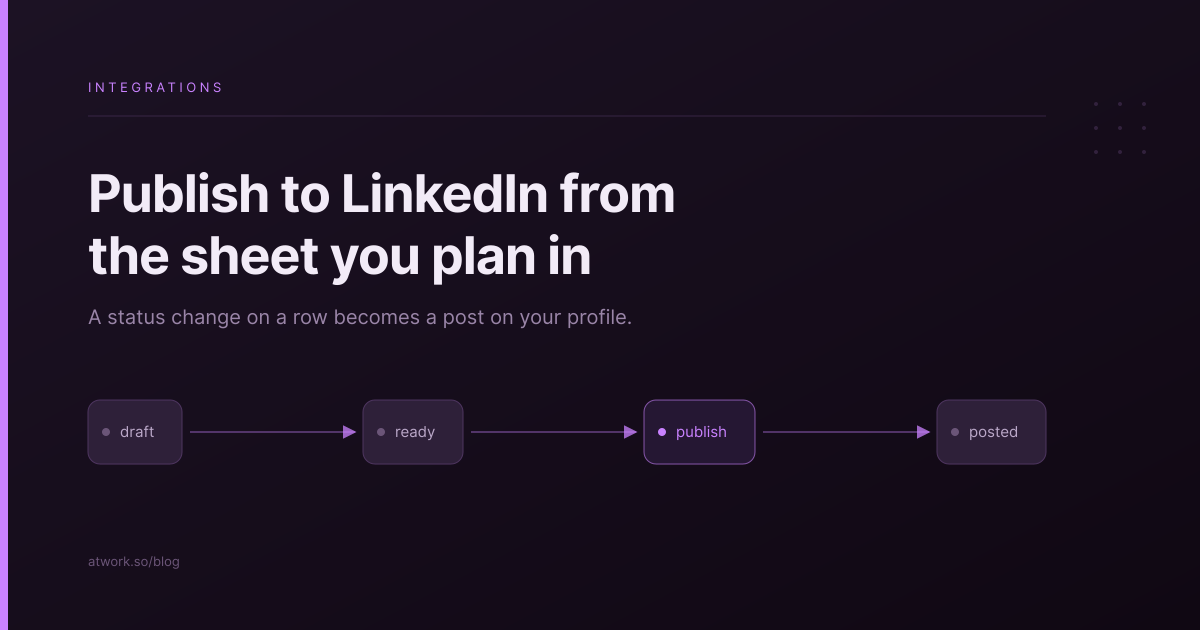
Atwork now has a LinkedIn integration. You plan posts as rows in a sheet, and a workflow publishes them to your LinkedIn profile — the text, an attached link, or an image — when a status flips or a scheduled date arrives. No copy-paste into LinkedIn, no second tool holding a duplicate of your content calendar. This guide covers what the integration does, who it is for, and how to set it up.
What does the LinkedIn integration do?
The integration connects a LinkedIn account to your Atwork workspace and gives every workflow a Create Post action. A workflow can publish a text post, attach a link with its own title, or upload an image, and set each post's visibility to public or connections-only. The post appears on the connected profile exactly as if you had typed it into LinkedIn yourself.
What makes this different from a scheduling tool is where the publish signal comes from. In Atwork, any workflow trigger can be the publish button: a status changing on a row, a date arriving, an approval landing. The place you plan the post and the thing that publishes it are the same row in the same sheet.
Who is publishing from a work OS for?
Anyone who writes on LinkedIn as part of their job but plans that writing somewhere else. If your post ideas already live in a sheet, a doc, or a content calendar, the integration removes the step between deciding a post is ready and it actually going out.
- Agencies. The workspace that runs your client delivery can run your own posting cadence too. A writer drafts the post as a row, the ops lead flips it to Ready, and the workflow publishes it. The review loop is a status column, not a Slack thread.
- Content creators. Batch-write ten posts on a quiet Monday, give each a publish date, and let the cadence hold through the weeks when you have no time to write. Consistency is the whole game on LinkedIn, and consistency is what a queue is for.
- Founders and consultants. A steady LinkedIn presence brings inbound, but posting between client calls does not happen. A queue you top up when you have energy beats an intention to post daily.
- Marketing teams. The draft, the review, and the publish live in one pipeline. Nobody pastes final copy from a doc into LinkedIn at 9 a.m. — the approved row is the final copy.
- Recruiters. Open roles are already rows in a sheet. A workflow can turn a role marked as published into a post announcing it, with the same wording every time.
How do you connect your LinkedIn account?
Open Integrations, choose LinkedIn, and click Connect. LinkedIn's own consent screen opens in a popup; approve it, and you are back in Atwork with your account listed as connected. It takes about a minute, and Atwork never sees your password — access is granted on LinkedIn's side and can be revoked there too.
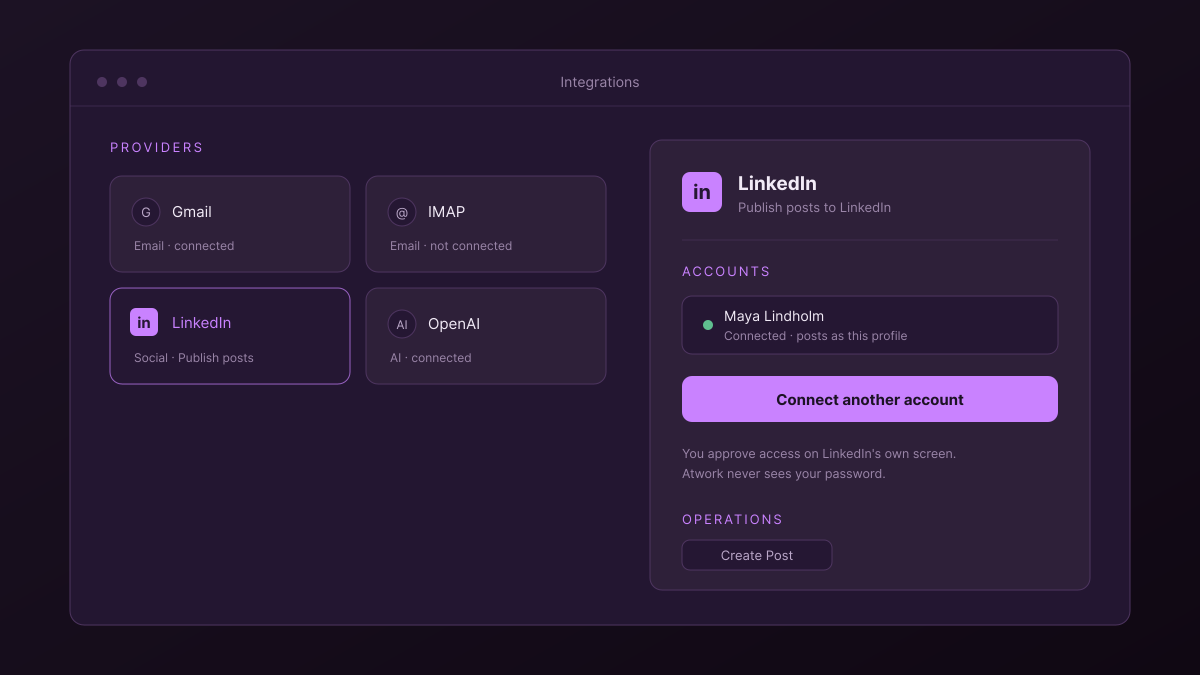
- Go to Integrations in your workspace and select LinkedIn.
- Click Connect. A LinkedIn window opens.
- Sign in and approve the access request on LinkedIn's screen.
- Back in Atwork, your account appears under the provider as connected.
Connections are per person. Each teammate connects their own profile, and a post publishes as whichever profile the workflow's credential belongs to — so a five-person team can run five voices from one workspace without sharing a login.
How do you publish a post from a workflow?
Add the LinkedIn Create Post step to any workflow. Pick a trigger — a status change on a sheet, a schedule — and map the row's fields into the post: the text, an optional image or link, and the visibility. When the trigger fires, the post publishes and the workflow moves on to its next step.

A working three-step workflow looks like this: a trigger watching the Posts sheet for Status changing to Ready, the LinkedIn Create Post step with the post text and image mapped from the row, and an update step that sets the row's Status to Posted afterwards. Nothing publishes until a person flips the status — the workflow is the hands, not the judgment.
The Create Post step gives you:
- Text — the body of the post, as plain text with line breaks. LinkedIn posts do not render bold or markdown, so what you write in the row is what readers see.
- Link URL and Link Title — attaches an article card to the post, with your own title on it.
- Image URL — a JPG, PNG or GIF, from a public URL or an Atwork file. Atwork uploads it to LinkedIn as a native image. An image and a link card are alternatives; a single post carries one or the other.
- Visibility — public, or connections only, set per post.
How do you run a sheet-driven content calendar?
Create a Posts sheet with five columns: the title, the post text, an optional image, a publish date, and a status that moves from Draft to Ready to Posted. One workflow watches for the status change and publishes. Switch the same sheet to calendar view and you are looking at your posting pipeline by week.
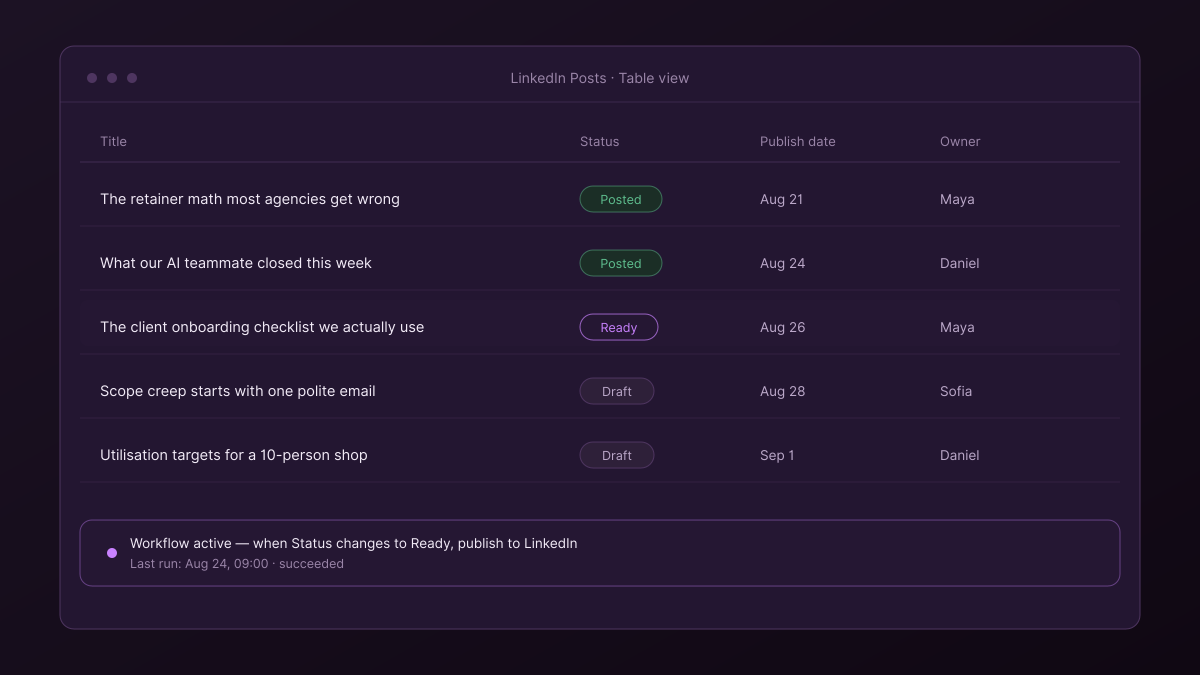
The sheet is the draft folder LinkedIn does not give you. Nothing leaves your workspace until someone flips the status.
LinkedIn itself has no drafts you can build up over time through an integration, and that turns out not to matter: drafting is what a sheet is for. Write rough rows whenever ideas arrive, refine them when you have a writing hour, and flip one to Ready when it is genuinely done. If you prefer publishing at a fixed time instead of on a status change, use a scheduled trigger that runs each morning and publishes whichever Ready rows carry today's date.
If you have not built a workflow before, start with a simple one to learn the trigger-and-step shape — the LinkedIn step drops into that pattern unchanged. And the reason to run the calendar this way is the same reason some automations survive contact with a real team while most get switched off: this one replaces a step people already resent doing by hand.
Should you replace your scheduling tool?
Not necessarily. Buffer and Hootsuite are genuinely better at multi-network publishing, engagement analytics, and best-time-to-post suggestions. If you push the same content to five networks and study the numbers, keep your scheduler — that is its job and it does it well.
The integration earns its place when LinkedIn is your main channel and your planning already happens in Atwork. Then a separate scheduler is a second copy of your content calendar that drifts from the first, plus a subscription that exists to do what a status column now does. The LinkedIn step is included in every Atwork plan, so trying the sheet-driven setup next to your current tool costs nothing but the hour it takes to build.
Build the Posts sheet, connect your LinkedIn account, and wire one workflow. Your next post publishes itself. Start free