Most tools are adding an AI chat box in a corner of their own app. Atwork works the other way round. You can connect Atwork to your AI assistant, so your workspace becomes something you can ask about from wherever you already talk to AI — and get answers about your own tasks, sheets and dashboards without opening Atwork at all.
This guide explains what that connection actually gives you, what it deliberately cannot do, and how to think about whether it fits the way your team works.
What does it mean to connect Atwork to an AI assistant?
It means your assistant can look things up in your workspace and act on them, on your behalf, in the middle of an ordinary conversation. Instead of you opening Atwork to check something, you ask — and the answer comes back with your real data behind it, not a guess.
The connection runs over an open standard called the Model Context Protocol, supported by a growing number of assistants. You do not need to know anything about it beyond the name. What matters is the shape of the thing: this is not a chatbot bolted onto Atwork's interface. It is Atwork becoming reachable from the assistant you already use.
That distinction has a practical consequence. Nothing has to move. Your work stays in Atwork, where your team's views, permissions and history live. The assistant is a second door into it, not a second copy of it.
What can you actually ask it?
Anything that amounts to reading your workspace or making a small, well-defined change to it. In practice that falls into four groups: finding things, summarizing things, capturing things, and checking numbers.
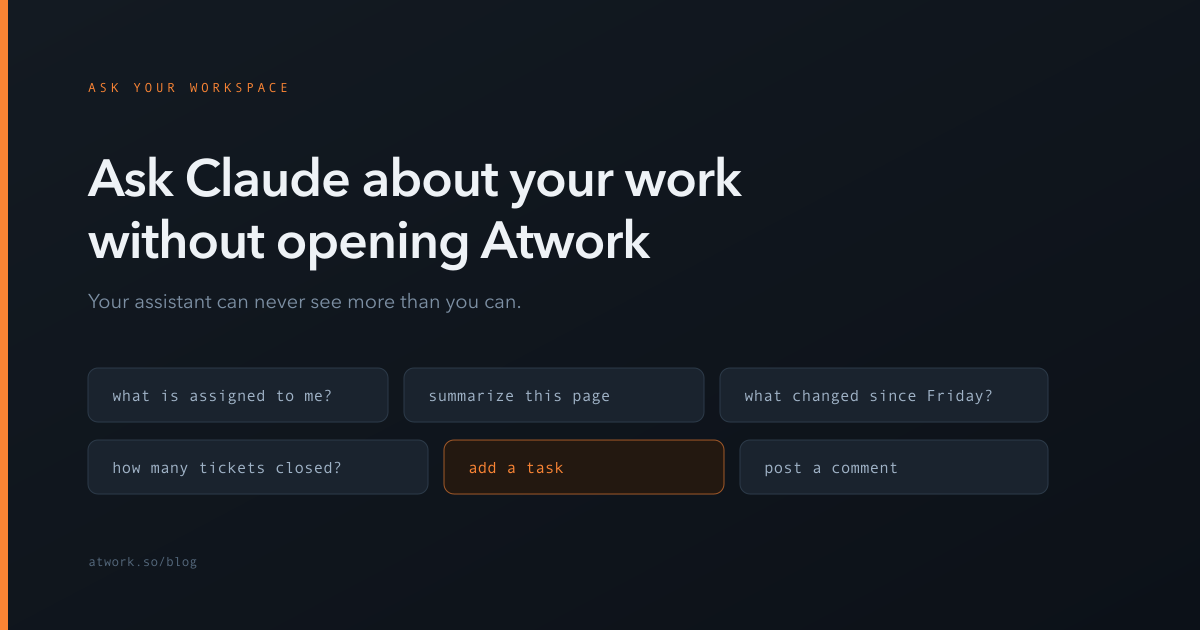
Finding things. What is assigned to me this week? Which items in the onboarding sheet are still unassigned? Show me what changed on the launch board since Friday.
Summarizing things. Summarize the notes on this project page. Across the support sheet, what are people complaining about most this month? This is where it tends to earn its place fastest — reading across many rows is exactly the tedious part.
Capturing things. Add a task to follow up with the design agency on Thursday. Post a comment on that item saying the client approved the budget. Capture is the underrated one: the moment you decide something is the moment it should get written down, and that moment is usually mid-conversation.
Checking numbers. What is the total value of open deals by stage? How many tickets did we close last month? You get the figure without building a view for it first.
The useful mental model is that anything your assistant can do, you could have done yourself in Atwork. It is a faster route to the same place, not a new set of powers.
How do you connect it?
At a high level: you add Atwork in your assistant's connector or integrations settings, sign in with your normal Atwork account in the browser window that opens, and approve the permissions screen it shows you. From then on the assistant can reach your workspace.
Three things are worth knowing about that flow. You sign in as yourself, with the account you already have — there is no separate AI login to manage. You are not asked to copy an API key or paste anything into a config file. And the permissions screen is worth reading: it lists, in plain words, every action the assistant is asking for, and you allow or deny that list as a whole.
The exact menu names differ between assistants and change as they update, so we keep this page general. The Atwork MCP page has the current steps for Claude, ChatGPT, Cursor and other assistants, and connecting your workspace to Claude with MCP covers what Claude can do over MCP and when to use it instead of an in-app agent.
Can an assistant see more than it should?
No — and this is the part worth understanding properly, because it is the question every team asks first. The governing rule is that a connected assistant can never see more than you can. Permissions only ever narrow your existing access. They never extend it.
That is worth restating plainly, because it is the opposite of how people often assume these integrations work. Connecting an assistant does not create a new, privileged account that can read everything in the workspace. It creates something strictly smaller than your own account. If a sheet is invisible to you, it is invisible to your assistant. If you cannot edit an item, neither can it. Every permission you grant is carved out of what you already had.
On top of that, two limits are enforced by Atwork rather than left to the assistant. Every call is checked against the list of actions you allowed when you connected. And actions classed as sensitive, the ones that reach outside your workspace or are hard to undo, are not offered to a connected assistant at all: no action deletes a sheet, a space or a row, and none sends email. There is no read-only mode and no switch for single actions; you allow the list as a whole. Each action is labelled as one that reads or one that changes data, so your assistant can check with you before it changes anything. Connecting your agency workspace to ChatGPT or Claude lists the main actions and what each one allows.
The honest caveat: none of this protects you from asking an assistant to do something you should not have asked. The boundary it enforces is your access, faithfully. It is not a second pair of eyes on your judgement.
What is it good at, and what is it not?
It is good at retrieval, summarizing across many records, and quick capture. It is not good at replacing the interface you use to actually run work — and treating it as a full substitute for your views is the most common way teams end up disappointed.
Where it consistently helps: answering a question you would otherwise have gone looking for, pulling a theme out of fifty rows, and writing something down before you forget it.
Where it does not: anything visual or spatial. Dragging work across a kanban board, reading a timeline, comparing a calendar week at a glance, restructuring a sheet. These are not limitations of the connection so much as of conversation itself — a board tells you something at a glance that a paragraph cannot.
The teams who get the most out of it treat it as a fast side entrance for questions and capture, while the real work of arranging and reviewing stays in the workspace.
What does this look like in a normal week?
Concretely: three or four small moments a day that each save a context switch, rather than one dramatic change to how you work.
Before a standup, you ask what your team changed yesterday and get a summary instead of scrolling a board. Mid-call with a client, you ask for a task to be added with a due date, and it is captured before the call ends rather than after you have forgotten. Reviewing the month, you ask for a figure that would otherwise have meant building a chart to answer once.
None of those are dramatic on their own. The reason it adds up is that every one of them is a moment you would otherwise have stopped, opened a tab, found the right sheet, and lost your thread.
Getting started
If your team already uses an AI assistant that supports the Model Context Protocol, the connection is available now and takes a few minutes to set up. If you are still evaluating Atwork, this is worth factoring in: it is not a roadmap item or a beta waitlist, it works today against the same workspace your team would be using anyway.
The best first test is a small one. Connect it, then spend a week only asking questions you would otherwise have looked up by hand — no capture, no changes. If the answers are right and the context switches you avoided are real, widen it from there.