
AI meeting notes took the work out of the summary. The follow-up is still work. A notetaker hands you a tidy recap of the client call, and someone still has to turn "we'll send the revised copy by Friday" into a task with a name and a date. That retyping is where client promises get lost.
A client call should end as rows, not a recap. Below: why a summary isn't enough, and how Atwork for Chrome and the Meeting notes workflow turn a recorded Google Meet, Teams or Zoom call into tasks.
Why do follow-ups from client calls go missing?
Follow-ups from client calls go missing because the promise is made out loud, the work is tracked in writing, and nobody owns the step in between. In Microsoft's 2023 Work Trend Index survey of 31,000 workers, 55% said next steps at the end of a meeting are unclear. Unclear next steps turn into "I thought you were sending that."
A client call leaves three kinds of follow-up behind:
- Ours. "Sanne sends the revised homepage copy by Friday." It gets done if Sanne remembers on Friday.
- Theirs. "Tom sends the logo files tomorrow." Nobody writes it down, so nobody notices they never came.
- Nobody's. "Someone should check who has access to analytics." Agreed by everyone, owned by no one.
Client email and portal tickets can already arrive as rows: a forwarding address per client turns email into tasks, and a ticket opened in your client portal is a row from the start. The call still runs on memory.
What does an AI notetaker actually hand you?
An AI notetaker hands you a recap: a transcript, a summary and a list of action items. That's what people asked for. The same Microsoft survey found 56% say it's hard to summarize what happens in a meeting, and 80% wanted AI to summarize their meetings and action items. A list of action items is still not assigned work.
Microsoft's report puts it this way: "With AI, every meeting becomes a digital artifact." True, and that's the problem. An artifact gets filed. A follow-up gets done, by someone, by a date.
A summary tells you what was said. A follow-up says who does what by when.
Some notetakers close part of the gap. Fireflies, for example, can create Asana tasks from a meeting's action items and assign them by the task owner's email. If your team plans its work in Asana, switch it on. The catch: the call and its follow-ups then live in two tools.
What should a client call produce instead?
A client call should produce rows, one per follow-up, each with four things: the action, starting with a verb; who owns it; the date it's due; and a link back to the call. Their side counts too. The logo files the client promised are a follow-up you're waiting on, so they get a row.

The decision behind each task stays with the call, under Decisions in the summary. A decision that changes what you agreed to deliver is a change request, not a task, and it needs a price before anyone starts.
Why do you have to say the owner and the date out loud?
Because an AI that guesses owners and dates is worse than one that leaves them blank. Atwork's Meeting notes workflow is built not to guess: it sets an assignee only when the person clearly matches someone in your workspace, and a due date only when one was said in the call. "By Friday" is read against the meeting's date. "Soon" is not a date.
So the last two minutes of the call decide what you get. Before anyone hangs up, read the follow-ups back as verb, name and day: "Sanne sends the revised copy by Friday. Tom sends the logo files tomorrow. Who checks analytics access?" The last one gets an owner, or a task with an empty Assignee.
How do you turn a recorded call into tasks in Atwork?
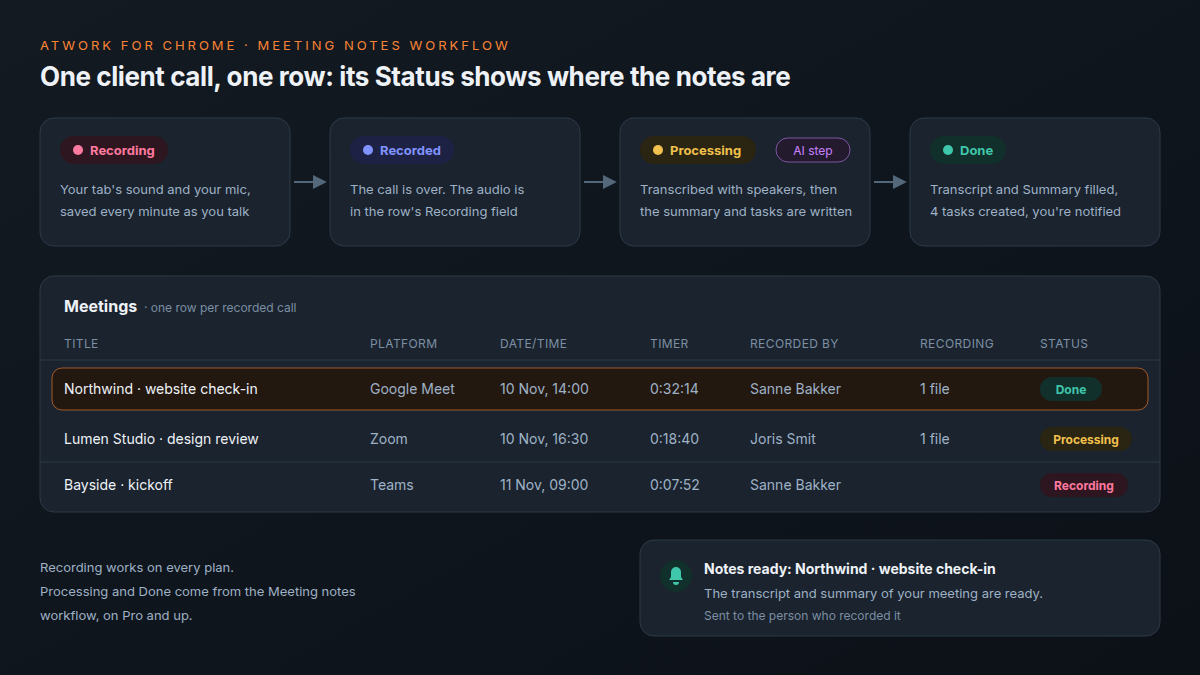
Record the call with Atwork for Chrome and let the Meeting notes workflow do the rest. The call becomes a row in a Meetings sheet. When the recording finishes, the row is set to Recorded, and the workflow transcribes it, writes a summary and creates one task per action item in the tasks sheet you chose.
- Install Atwork for Chrome, pin it and connect it to your workspace.
- Choose where recordings go: Create my Meetings sheet (private to you) or Pick a sheet your team can see. Under Action items go to, pick the tasks sheet your team already works from.
- Join the call in a browser tab (Google Meet, Teams or Zoom on the web) and start recording from the Atwork icon. After the first time, Alt+Shift+R works too. It records the tab's sound and, once you allow it, your microphone.
- Name the meeting after the client in Meeting title, such as "Northwind · website check-in", so each task links back to a call you recognise.
- Stop the recording, or leave the call and let meeting detection finish it. A notification tells you when the notes are ready.
Each task follows the same rules:
| Task field | What the Meeting notes workflow writes |
|---|---|
| Title | The action, short, starting with a verb |
| Assignee | A workspace member, only when the person clearly matches one |
| Due date | Only when a date was said; "Friday" is read against the call's date |
| Description | What was agreed, and a link back to the meeting row |
It only adds tasks; it never edits or deletes existing ones. The notes come out in the language of the call.
What should you tell a client before you record?
Ask the client at the start of the call, before you press record, and say why: "We record our calls so the follow-ups land as tasks. Is that all right?" If anyone says no, take notes by hand. Whether you also need consent in writing depends on where you and your client are. This isn't legal advice.
Asking is less common than recording. In a July 2026 survey of 500 employed US adults commissioned by Kolmogorov Law, 33.4% said an AI notetaker or transcription bot had been present in their work meetings. Of those, only 34.7% said they were always asked for permission before it recorded.
Atwork for Chrome records from your browser tab, so no bot joins the call to tell your client it's being recorded. You are the signal. With meeting detection on, the prompt that offers to record says "Let everyone know before you record." Create my Meetings sheet keeps recordings private to you; the popup tells you when a sheet you pick is shared.
What doesn't Atwork for Chrome do?
Atwork for Chrome records Google Meet, Teams and Zoom calls you join in a Chrome tab, and nothing else. It doesn't record the Zoom or Teams desktop apps. Recording works on every plan, but the transcript, summary and tasks come from the Meeting notes workflow, which needs Pro. On Free, you keep the recording in its row.
A notetaker bot covers more ground here. Atwork next to Fireflies with Asana, as each describes itself in November 2026:
| What happens | Fireflies with Asana | Atwork |
|---|---|---|
| How the call is recorded | Its notetaker bot joins by invite or from your calendar | Your Chrome tab and your microphone; nothing joins the call |
| Zoom or Teams desktop app | Covered: the bot joins the meeting, and there's a desktop app | Not covered: join in a browser tab |
| Where action items go | Tasks in the Asana project you pick | Tasks in the sheet you pick, in your Atwork workspace |
| Who gets assigned | Matched by the task owner's email, when auto-assign is on | A member the person clearly matches; otherwise nobody |
Frequently asked questions
Does Atwork for Chrome record the Zoom desktop app?
No, only calls in a Chrome tab. With meeting detection on, Atwork shows "Join in the browser to record" on a Zoom or Teams invite page. Choose "Join from your browser" on Zoom's page or "Continue on this browser" on Teams' page.
Do I need Pro to record client calls?
No. Recording, the Meetings sheet and a row with the audio work on every plan. The transcript, summary and tasks need Pro. On Free, the Meeting notes workflow is saved turned off, so after you upgrade, check that it's on in your Meetings sheet's Workflows tab. Transcription uses AI credits from your plan's AI budget.
Will the tasks be assigned to my client?
No. Tasks are assigned only to members of your workspace. A promise the client made still becomes a task, with no assignee and the person named in its description, so you can see what you're waiting on.
Where do you start this week?
Start with one recurring client call, such as the weekly check-in with your busiest client, and run it this way for two weeks. Record it, read the follow-ups back before you hang up, and check the tasks the next morning. Every empty Assignee you find is a follow-up nobody owned.
If the call was only ever a status update, it may not need to be a call: see client status updates without the weekly call. The automation page shows what else you can automate in Atwork.
Record your next client call and let it end as tasks with names and dates. Start a free workspace, then add Atwork for Chrome. Start free Add Atwork for Chrome