How to summarize an Inbox conversation and suggest replies
In the Inbox, AI can summarize a conversation or a thread, catch you up on what arrived while you were away, and suggest or draft your reply. Owners, admins and members can use it in direct messages, groups and spaces. Nothing is sent until you send it yourself.
Before you start
- You need to be an owner, admin or member of the workspace. Guests and portal users can't use these.
- Summaries, catch-ups, suggestions and drafts use your workspace's AI budget. See The AI budget.
- Open the full Inbox from the dock: Inbox → See all.
Summarize a conversation
- Under Direct messages or Groups & spaces, open the conversation.
- Click Summarize in the conversation's header.
The Summary lists what was discussed, what was decided and anything asked of you. It reads up to the 60 most recent messages, and the line under the title says how many it read.
- Reopen it to see the same summary without running it again. Click Refresh for a new one.
- AI writes it in the language most of the messages are in. When that isn't clear, it uses your own language.
- In a narrow window the button shows only its sparkle icon.
Summarize a thread
- In the conversation, point at the message the thread starts from.
- Click Reply in thread. The thread opens on the right.
- Click the sparkle icon at the top of the thread, next to the close button (Summarize thread).
The Thread summary covers that thread only.
Catch up on what you missed
- On the full Inbox page, choose Inbox in the list on the left.
- Click Catch me up at the top of the list.
- To look further back, change Last 24 hours to Last 3 days or Last 7 days.
The Catch-up card opens with a short overview, then one row per conversation: its name, how many messages are new, when the last one arrived and a one-line summary. Click a row to open that conversation.
- It covers what others wrote in your direct messages, groups and spaces, up to 20 conversations, the most recently active first. Your own messages and comments on rows are left out.
- With nothing new in that window, it says You're all caught up.
- The card stays when you open a conversation and come back. Refresh runs it again, and the × closes it.
- Catch me up shows only on the Inbox list, not under Mentions, Assigned to me, Snoozed or Archive.
Get reply suggestions
- Open the conversation, or the thread you want to answer.
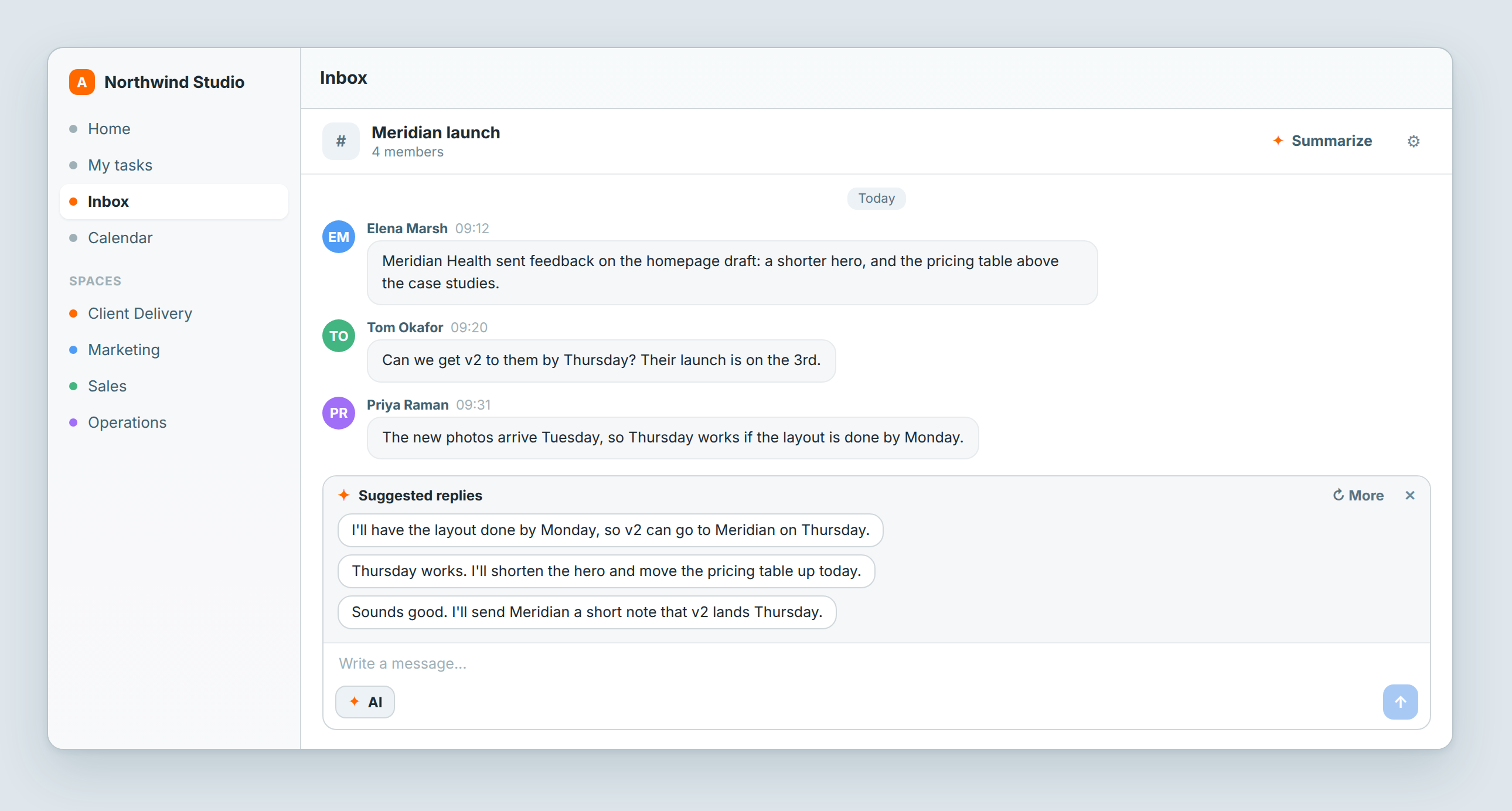
- At the bottom of the message box, choose AI → Suggest replies.
- Click the reply you want.
The reply goes into the message box for you to edit and send. You get two or three short replies written from the conversation, under Suggested replies (Suggested from this thread in a thread). More asks for new ones. After you pick one, Undo puts back what you had typed before.
Draft a message from an instruction
- At the bottom of the message box, choose AI → Draft with AI.
- Type what the message should say, for example: decline politely, offer Tuesday. You can use up to 500 characters.
- Click Write, or press Enter.
The draft goes into the message box, in the conversation's language. Change the instruction and click Write again for another version. Undo puts back what you had typed before. Nothing is sent until you send it.
When it doesn't work
| What you see | What to do |
|---|---|
| A message that the workspace is out of AI credit | The AI budget for the month is used up. The workspace owner can buy more: see The AI budget. |
| A message that you've reached your monthly AI limit | Your own limit is used up. Ask an admin to raise it. |
| Couldn't summarize right now., Couldn't catch you up right now. or Couldn't write that. Try again. | Click Try again or Retry. |
| You can't summarize this conversation. | You don't have access to that conversation. |
| No AI button in the message box | It is hidden while you edit a message, and for guests and portal users. It isn't in the comment box on a row. |
Related: The Inbox · The AI budget · Agents in chat: mentions and hand-offs