
The Kanban Board View in Atwork is designed to provide a visual, intuitive way to organize tasks and workflows. It's perfect for managing projects, tracking progress, and improving team collaboration. Here's how you can make the most of it:
Grouping Kanban by Columns
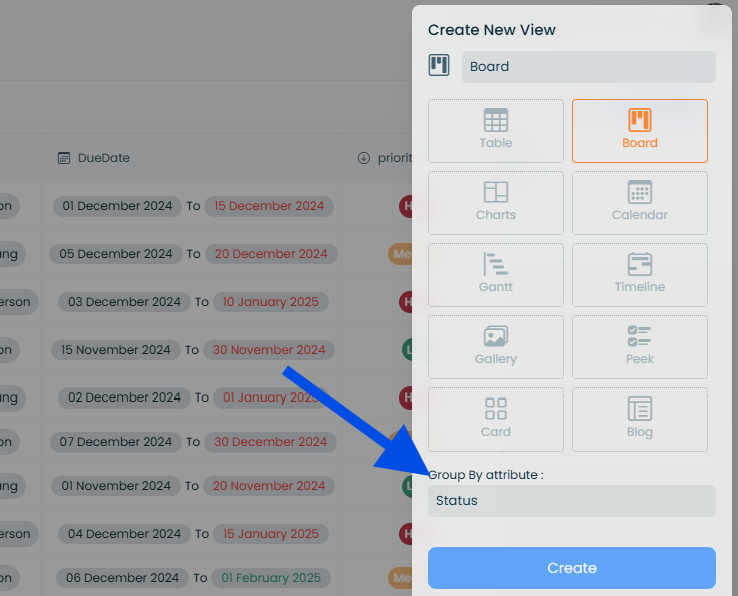
When creating a Kanban Board View, you can decide how the columns (groups) are organized:
- Choose the column grouping based on a specific table column, such as Status, Priority or Category.
- This flexibility allows you to tailor the board to match your workflow or project needs.
Kanban Board Menu Options
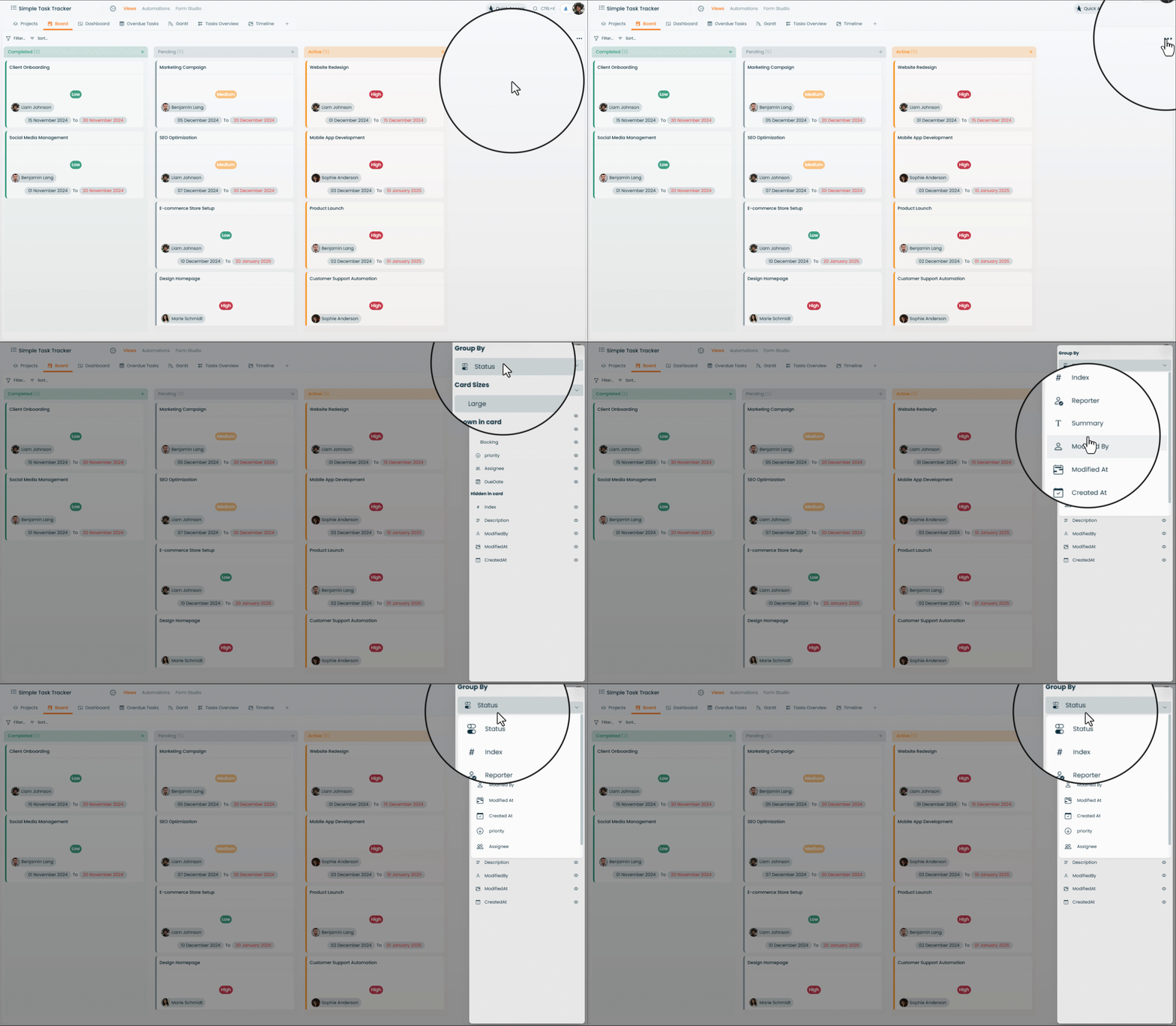
Just like the Table View, the Kanban Board has a menu (three dots) at the top-right corner with key customization options:
Group by
- Adjust column grouping dynamically without rebuilding the view.
- For example, switch grouping from Status to Assigned To in order to view tasks by team member.
Card Sizes
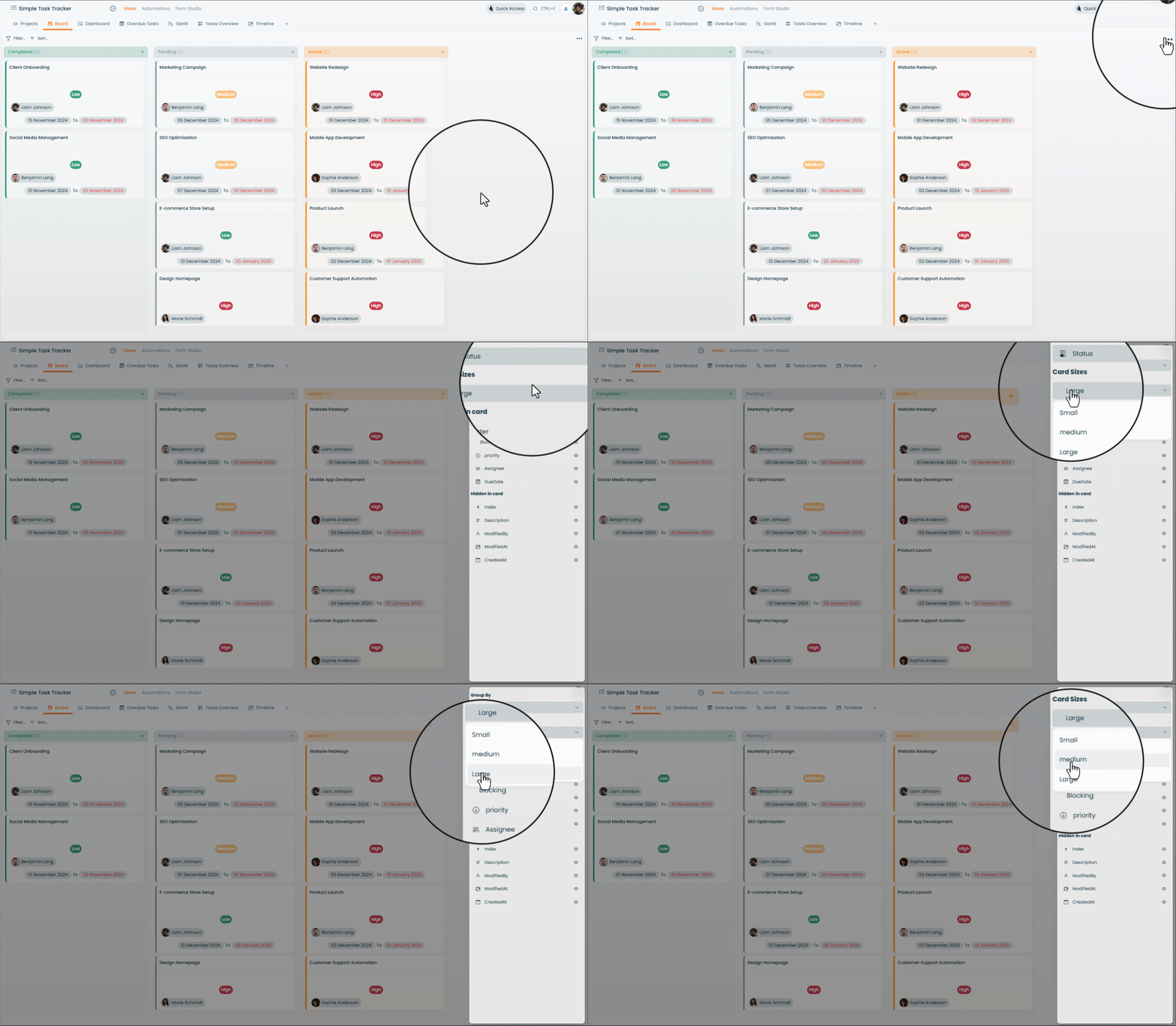
Choose how much information to display on the cards:
- Small: minimal, compact view.
- Medium: balanced view (default).
- Large: displays maximum details on each card.
Shown in Card
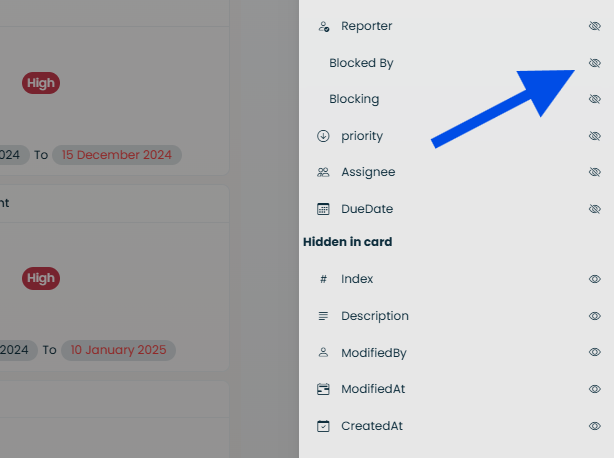
- Use the eye icon to customize which details appear on the cards, such as due date, assignee or priority.
- Hide unnecessary information to reduce visual clutter, or reveal critical fields for quick insights.
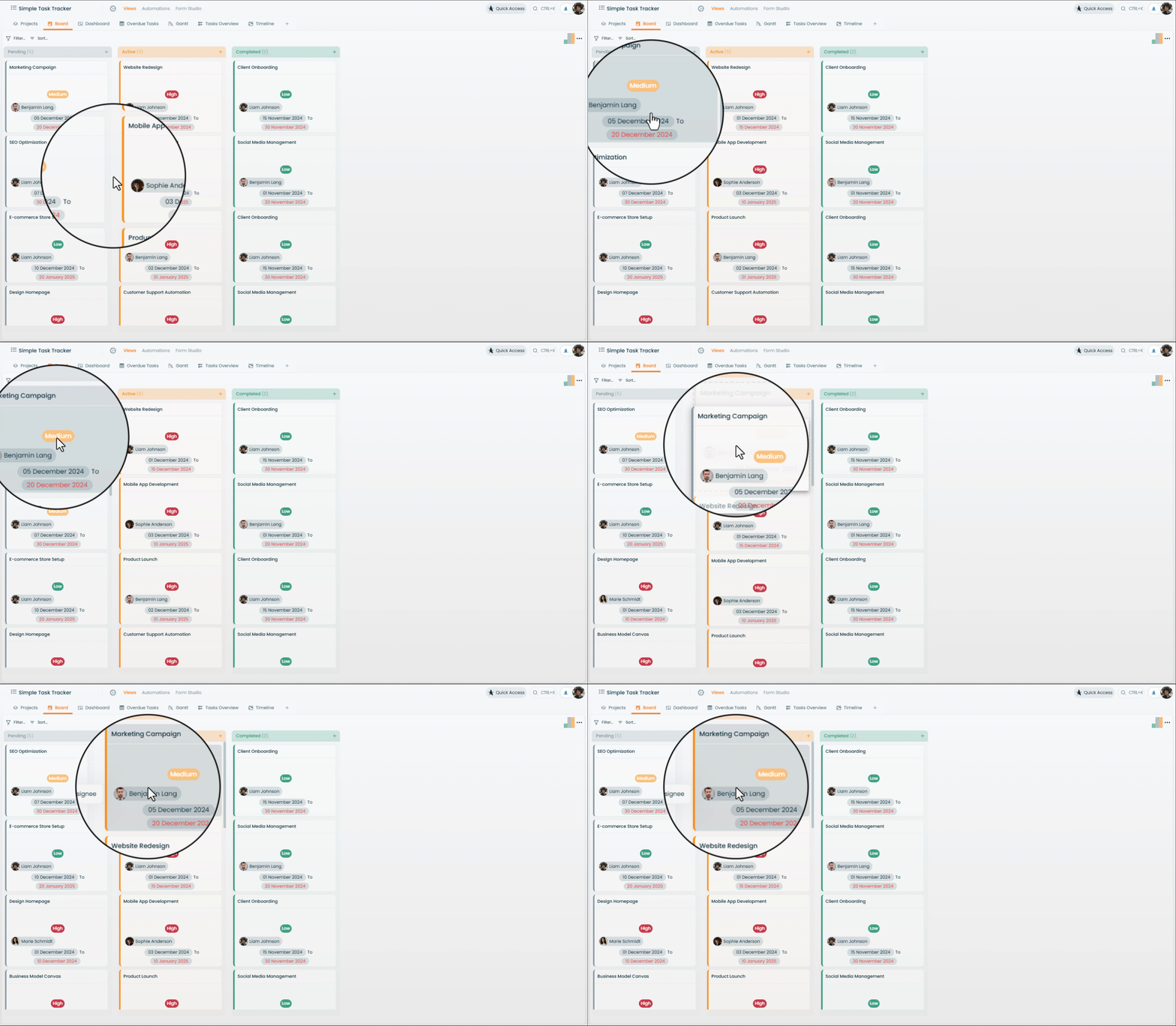
Moving Cards Between Columns
- Easily rearrange tasks by dragging cards from one column to another.
- This reflects progress or changes in task status in real time.
- For example, move a task from To Do to In Progress with a simple drag-and-drop action.
Creating New Cards
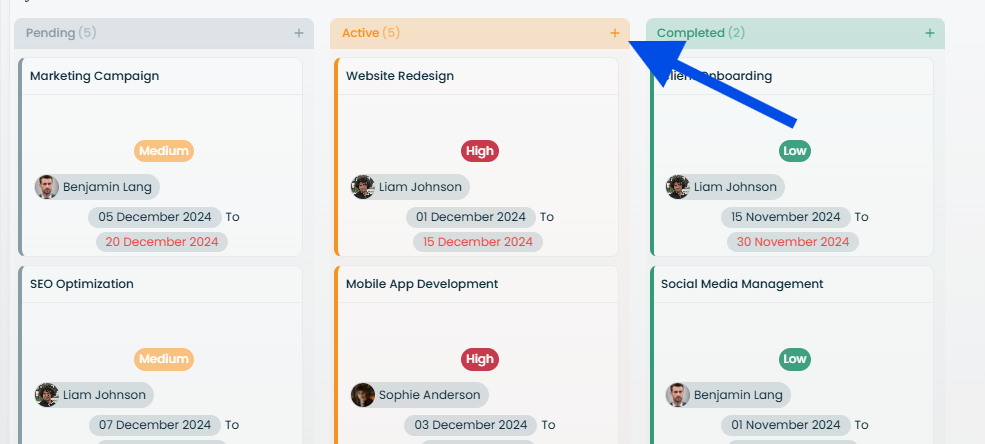
- Add new tasks directly to a specific column using the + button in the column header.
- The task will automatically inherit the grouping value of the selected column.
- For example, clicking + in the To Do column creates a task with its Status already set to To Do.
Filtering and Sorting in Kanban
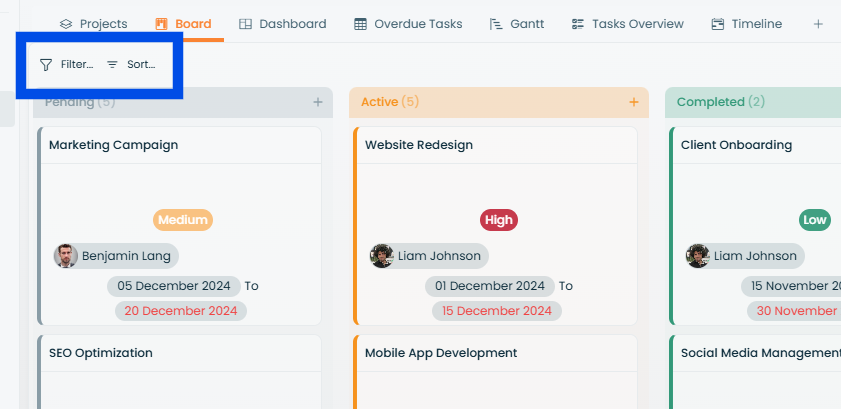
Kanban filtering and sorting work exactly like the Table View:
Filter
- Apply filters to focus on specific tasks, such as those assigned to a team member or due this week.
- Add multiple conditions for advanced filtering.
Sort
- Organize cards within columns based on specific fields, like due date or priority.
- Apply multi-level sorting for detailed organization.
Why Choose Kanban View?
- Visual organization: gain an at-a-glance view of your workflow.
- Customizable: adjust grouping, card sizes, and visible details to suit your needs.
- Collaborative: easily drag and drop tasks, making it perfect for team environments.