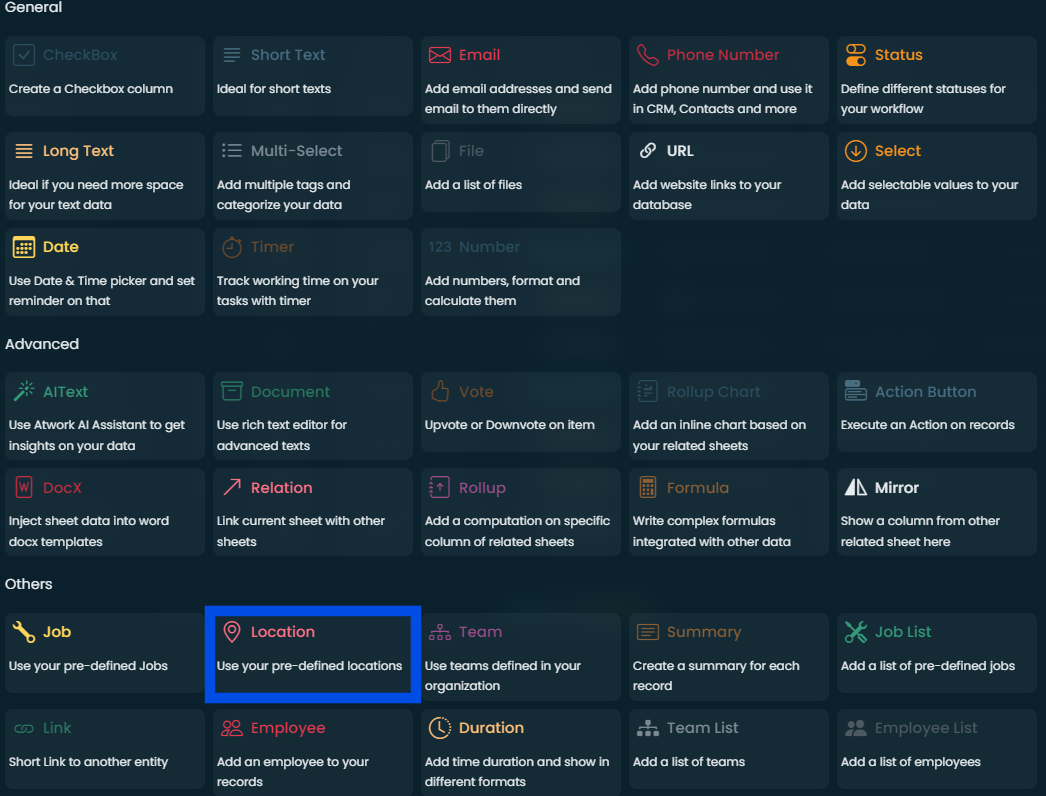
Atwork provides a wide range of data types (columns) to help you organize, structure, and customize your workspaces. Each data type is designed to meet specific business needs, making it easier to manage your workflows, track progress, and visualize results. Below is a complete guide to each available column type and how you can use them to boost your productivity.
General Data Types
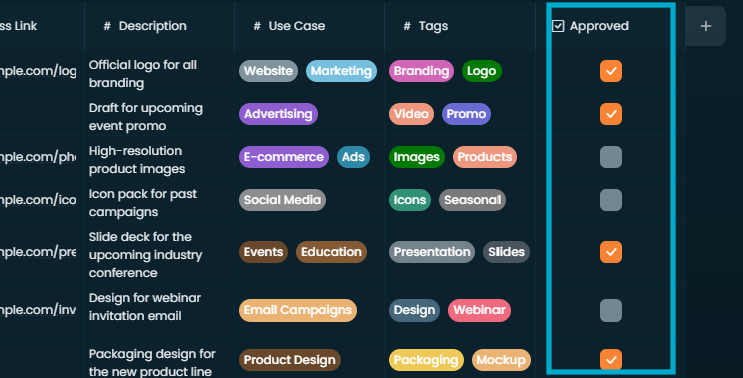
CheckBox
A simple yes/no field that allows users to track the completion status of tasks, confirm decisions, or mark important items.
Common use cases: tracking task completion, marking approvals, indicating attendance or participation.
Short Text
Used for storing brief pieces of text, such as names, titles, or short descriptions.
Common use cases: task titles ("Design Logo"), contact names ("John Doe"), product codes ("SKU12345").
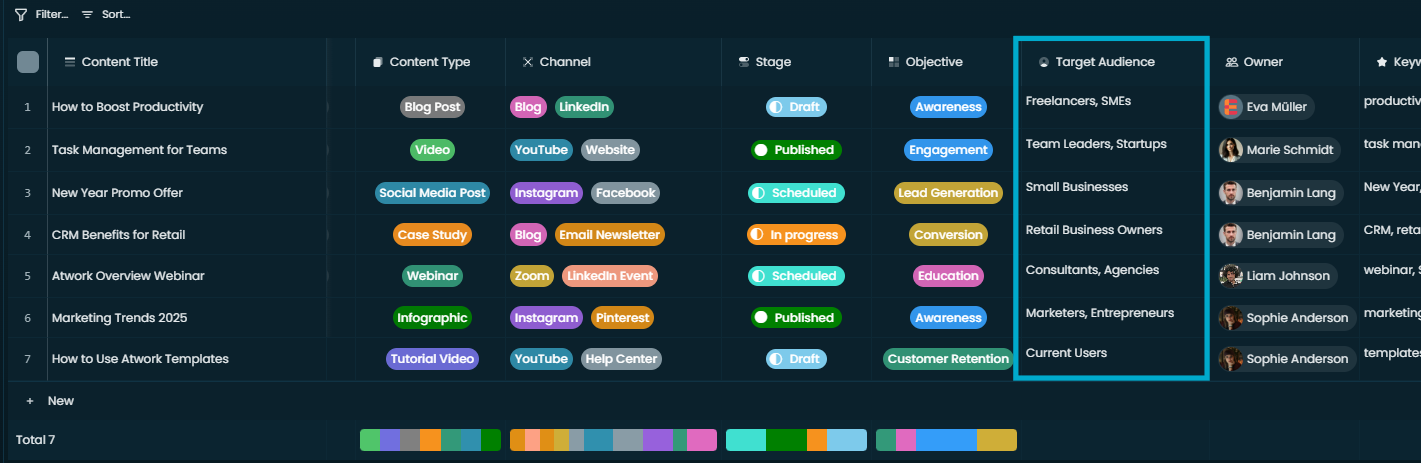
Specifically designed to store email addresses. Users can click the email field to open their default email client and send a message.
Common use cases: storing customer or client addresses in a CRM sheet, sending follow-ups directly from Atwork, managing team communication within a project.
Practical tip: use this column to automate emails with the Action Button feature for faster communication.
Phone Number
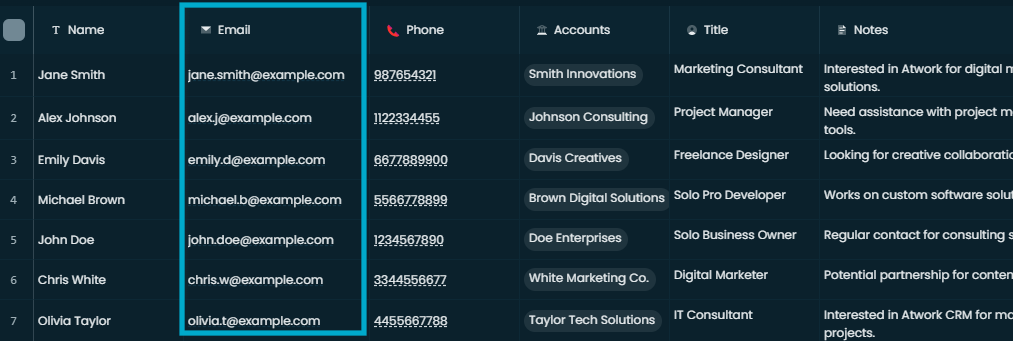
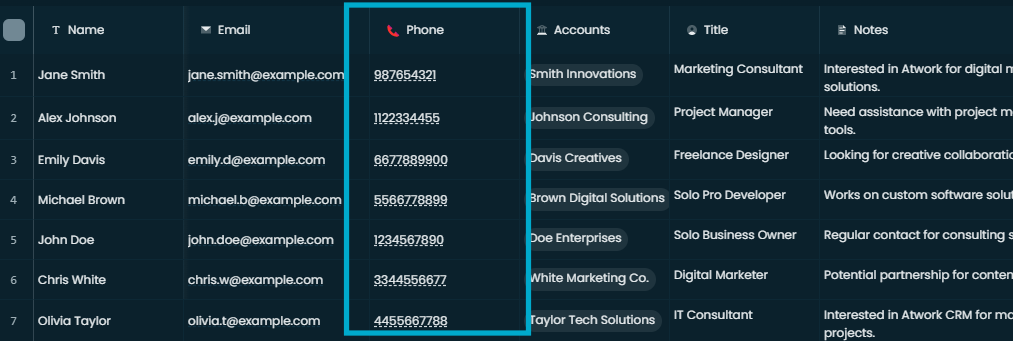
A dedicated field for storing phone numbers, which can be used in CRM sheets, contact lists, and elsewhere.
Common use cases: storing customer contact numbers, tracking team members' numbers, using numbers in sales pipelines.
Practical tip: use consistent formatting to maintain data clarity.
Status
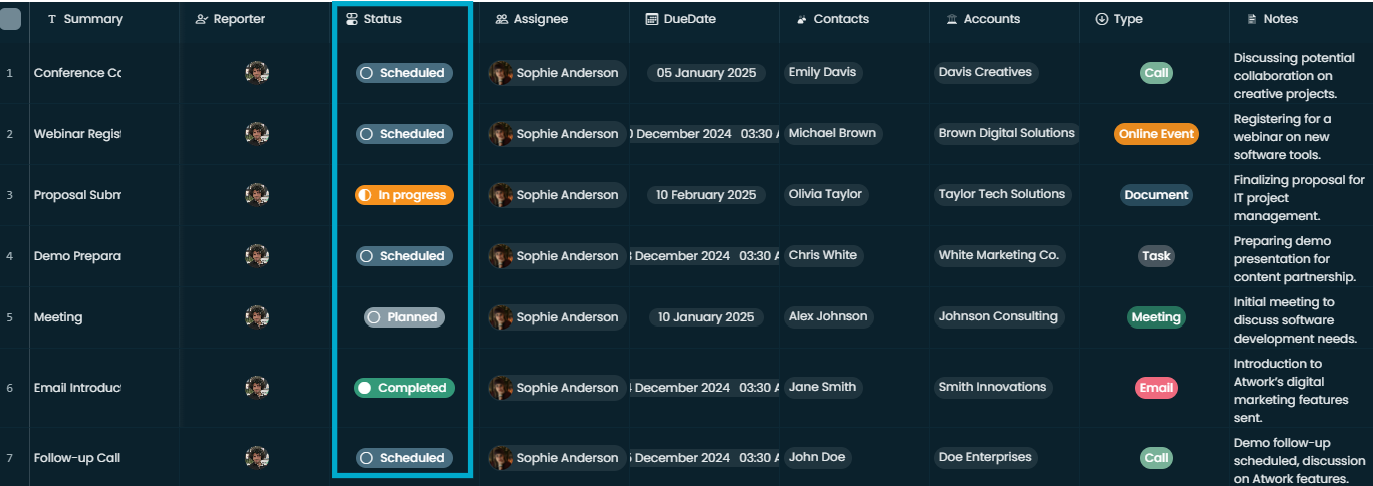
Helps you define the stages of a workflow. Each status represents a different point in a process, making progress easier to track.
Common use cases: task statuses (To Do, In Progress, Done), sales pipeline stages (Lead, Qualified, Negotiation, Closed), bug tracking (Open, In Review, Resolved).
Practical tip: customize your status labels and colours to make the workflow visually clear.
Long Text
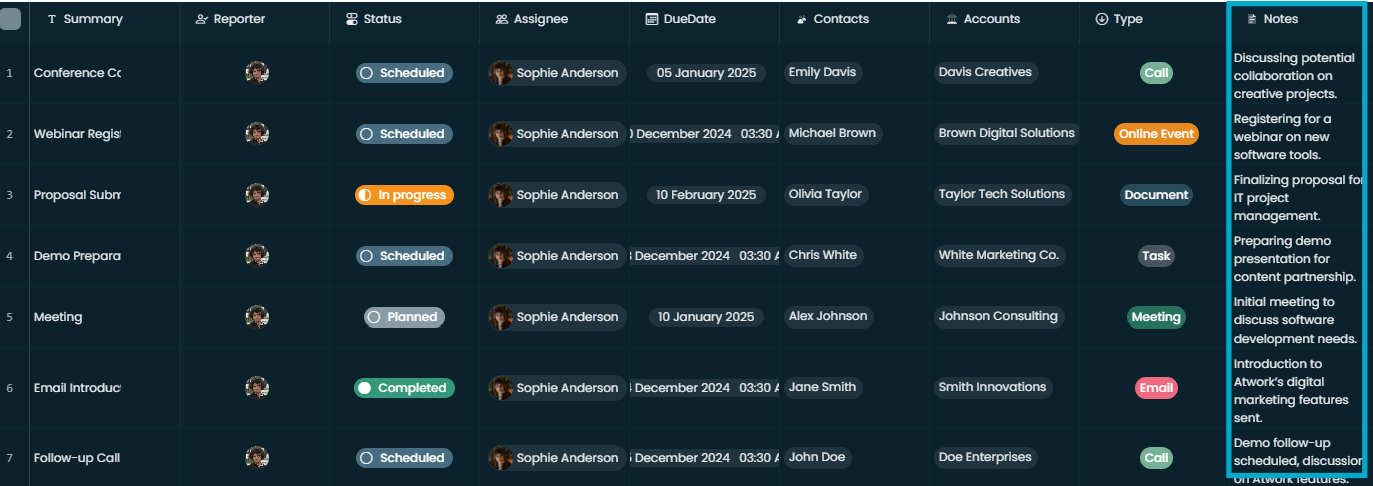
Ideal for detailed information such as notes, instructions, or descriptions. Unlike Short Text, this field allows multiline input.
Common use cases: detailed task descriptions, meeting notes and summaries, customer feedback or testimonials.
Multi-Select
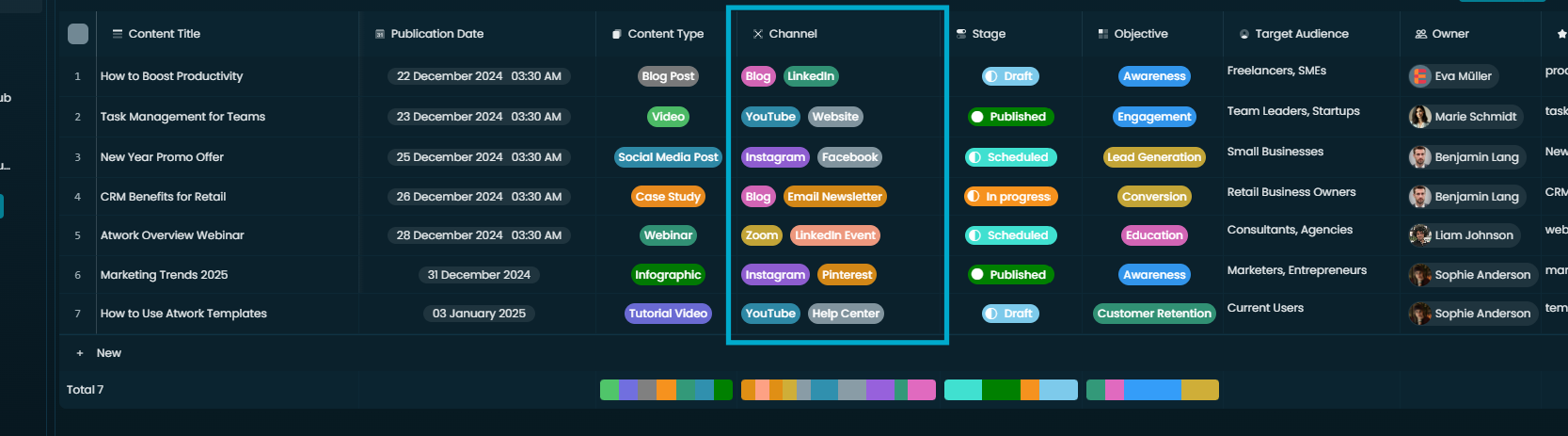
Allows multiple tags on a single record, which is useful for categorizing and filtering data.
Common use cases: categorizing tasks by several tags, adding multiple skill sets to employee records, tracking customer contact preferences.
Practical tip: apply relevant tags and then filter your sheet by them.
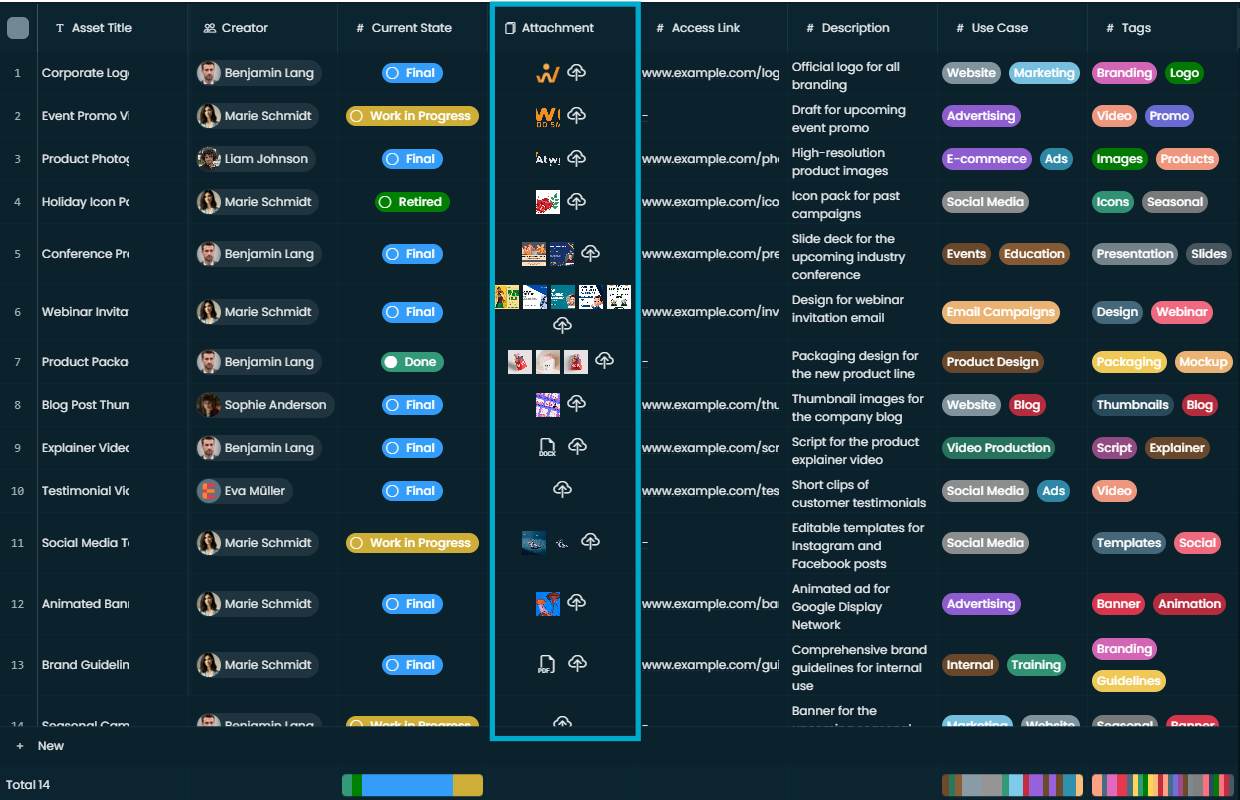
File
Upload and manage file attachments directly within your sheets.
Common use cases: project files such as designs, proposals and contracts; product images in an inventory sheet; meeting minutes attached to a task.
Practical tip: name files clearly and consistently so the right attachment is easy to find.
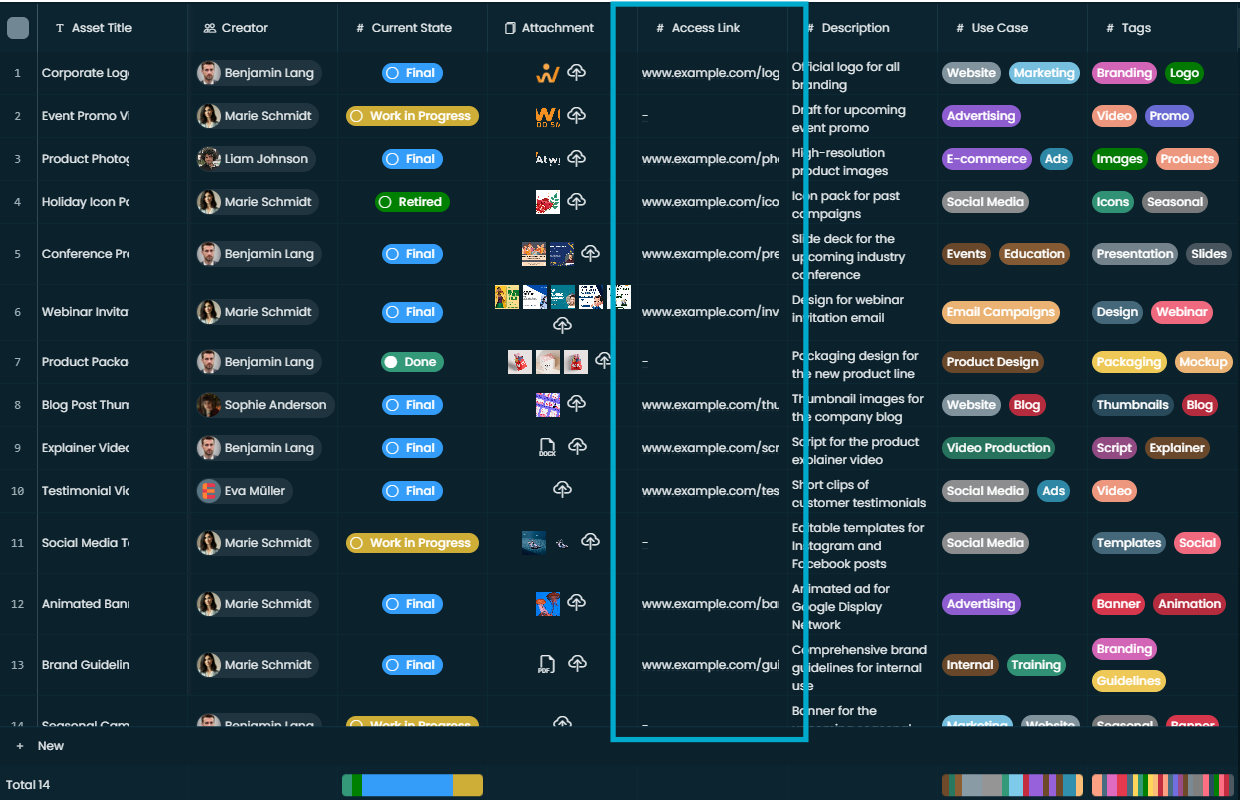
URL
Stores clickable links to websites, documents, or other online resources.
Common use cases: linking to project resources, adding website links to CRM contacts, linking to cloud storage files.
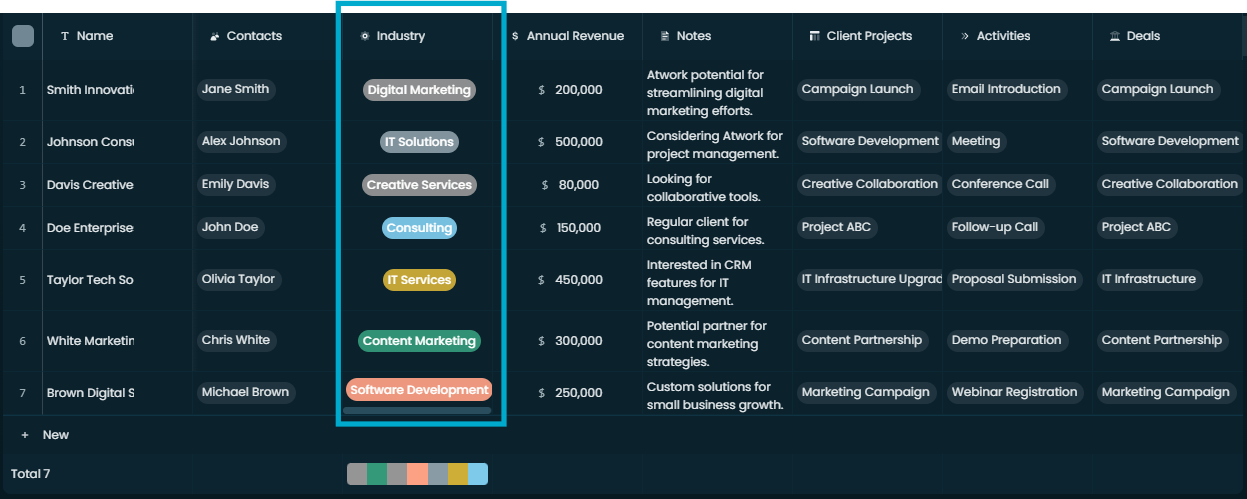
Select
A dropdown field for choosing a single value from a predefined list.
Common use cases: task priority (High, Medium, Low), department for employee records, product categories.
Practical tip: keep dropdown values short and clear to improve usability.
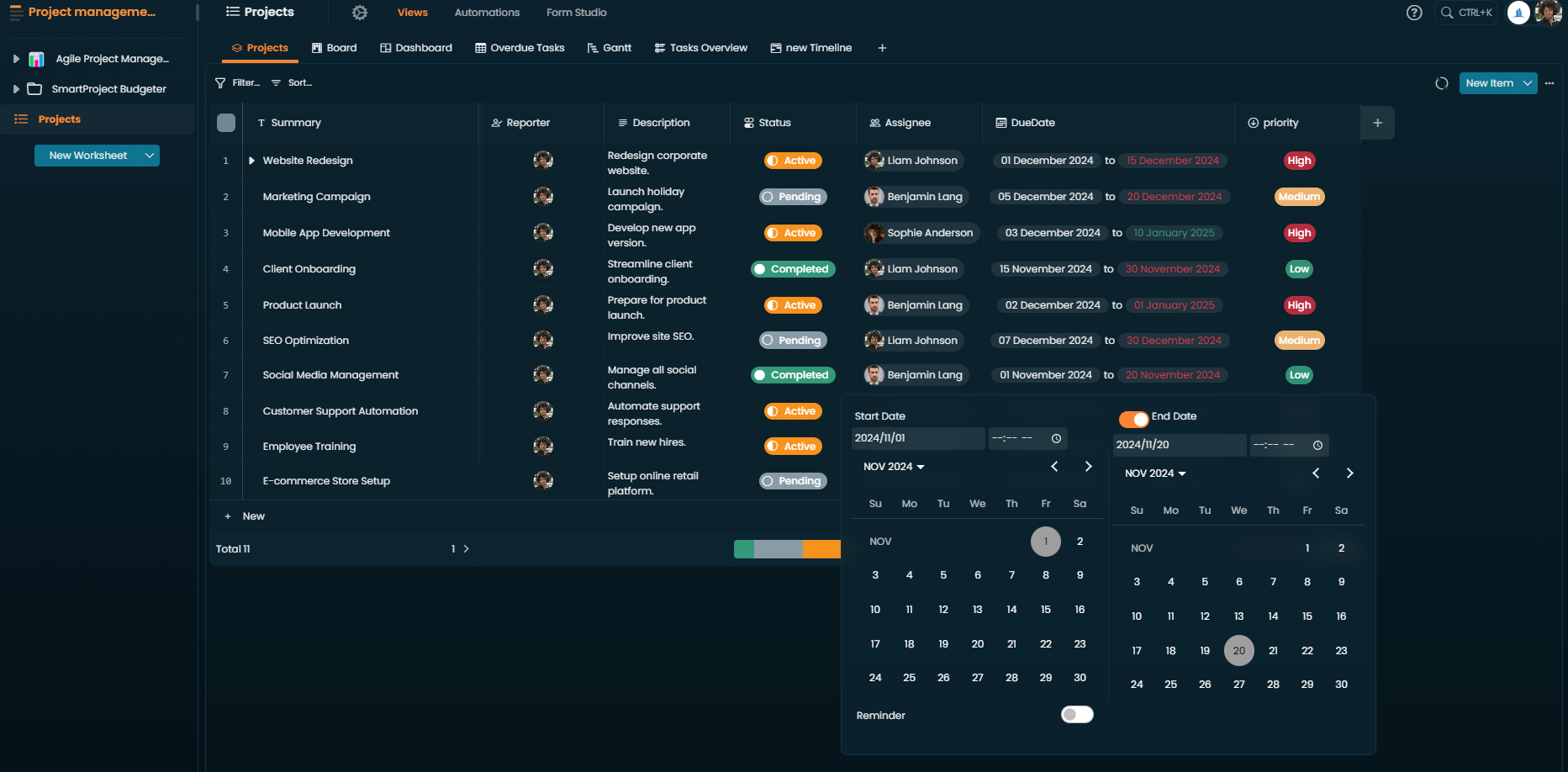
Date
Add dates and set reminders using the built-in date and time picker.
Common use cases: tracking due dates and deadlines, scheduling meetings and events, recording customer interactions.
Practical tip: use the reminder feature to get notified about important dates.
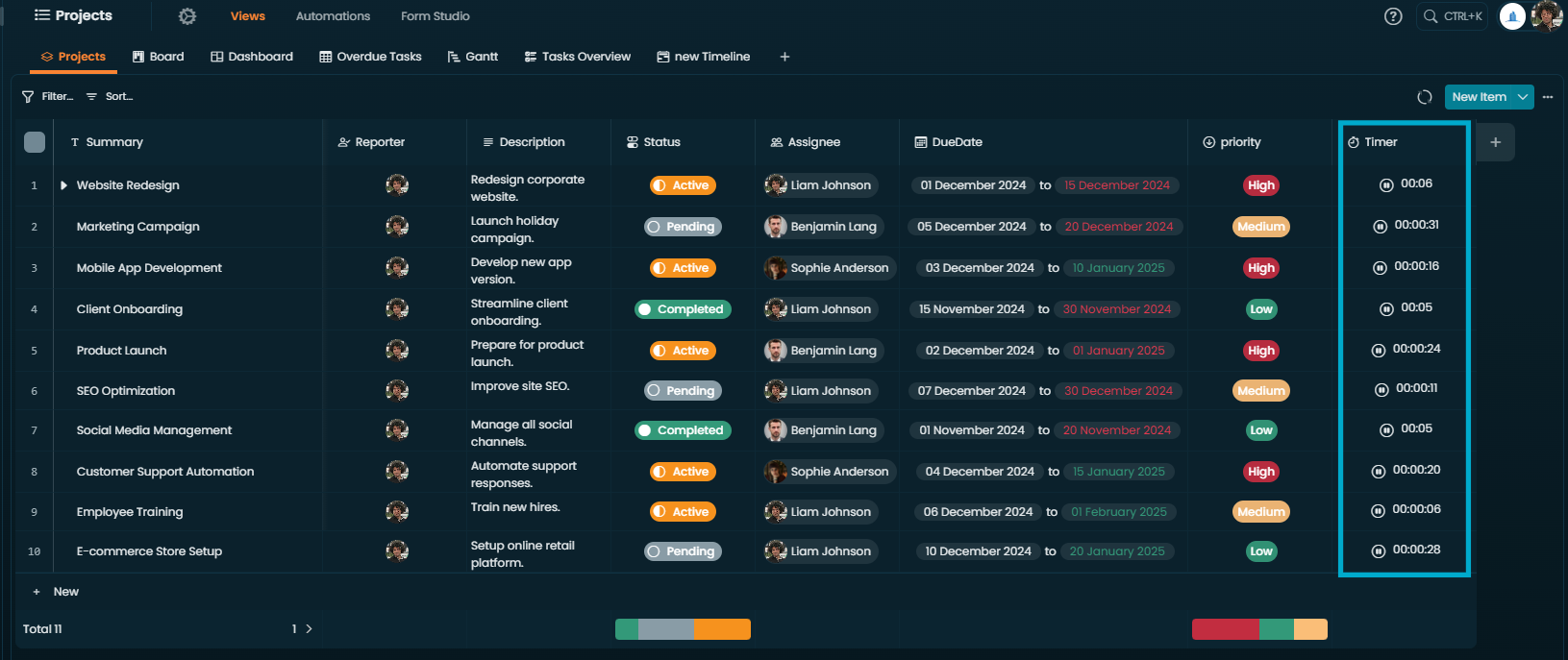
Timer
Tracks the amount of time spent on tasks, which is useful for monitoring productivity and billable hours.
Common use cases: time spent on client projects, team productivity, time for specific activities.
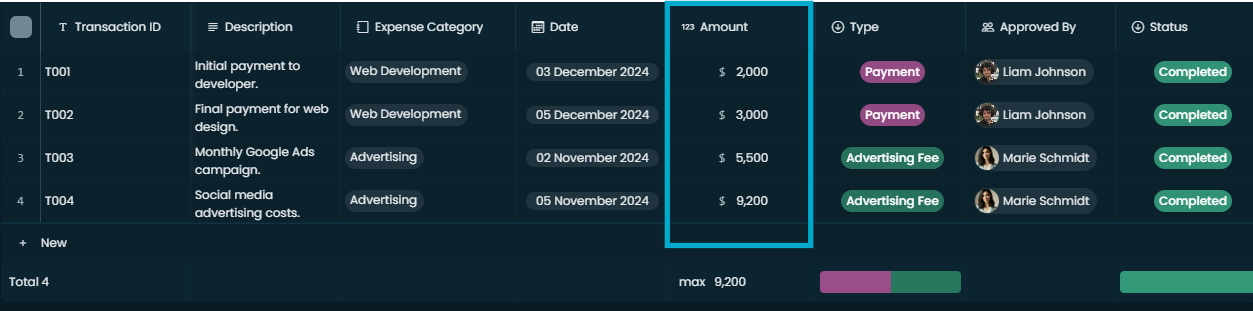
Number
Input numerical data, format it, and perform calculations.
Common use cases: sales figures or budgets, inventory quantities, discounts or percentages.
Advanced Data Types
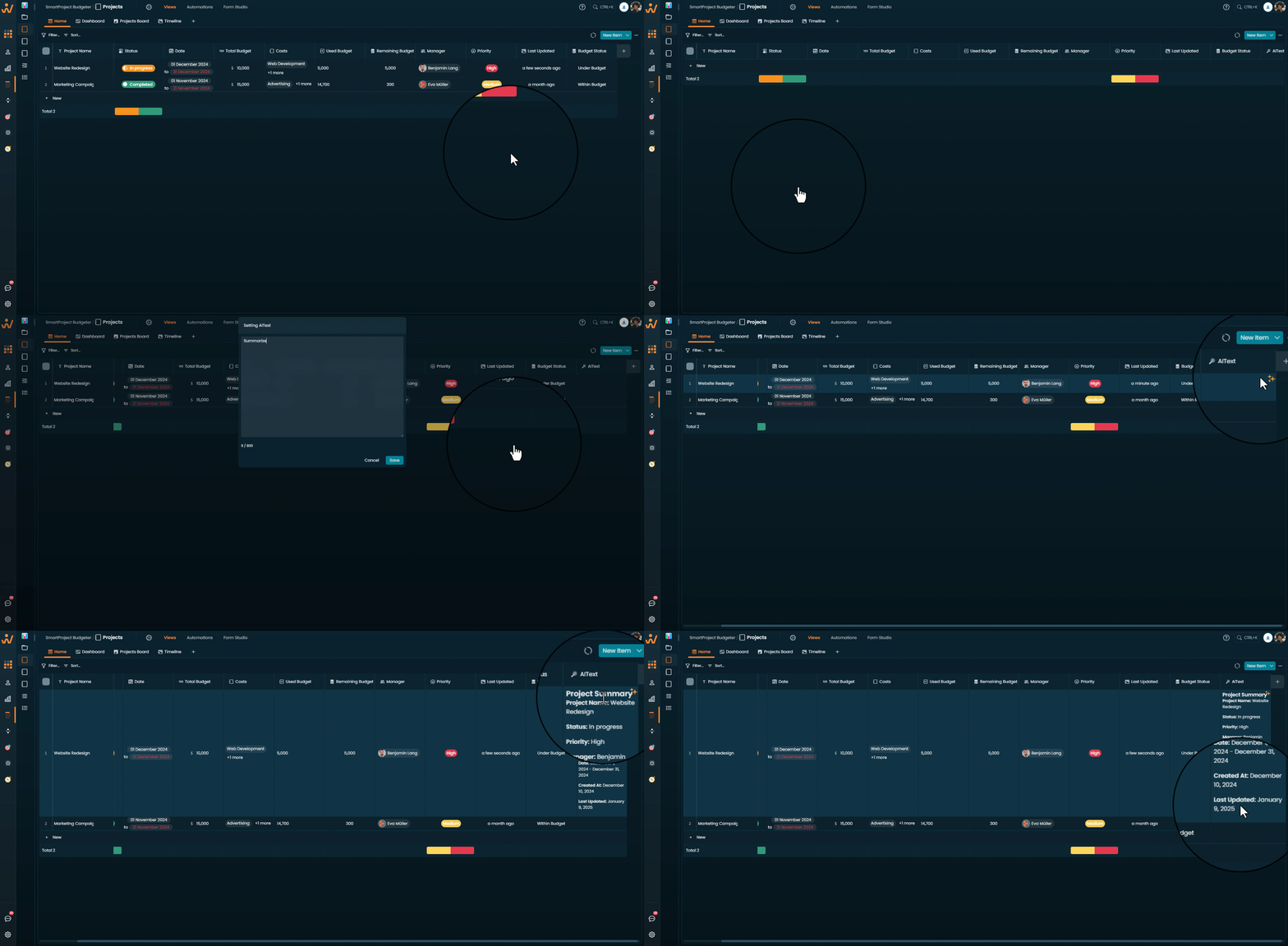
AIText
Integrates Atwork's AI assistant directly into your sheets. It can generate insights, summaries, suggestions, or predictions.
Common use cases: generating meeting summaries from notes, content suggestions based on keywords, summarizing customer feedback for faster analysis.
Practical tip: more specific prompts produce better results.
Document
A rich text editor that lets you create detailed documents inside your sheets, with formatting such as bold, italic and bullet points.
Common use cases: project briefs, client reports or proposals, meeting minutes.
Practical tip: use this column to centralize documentation within your projects instead of an external word processor.
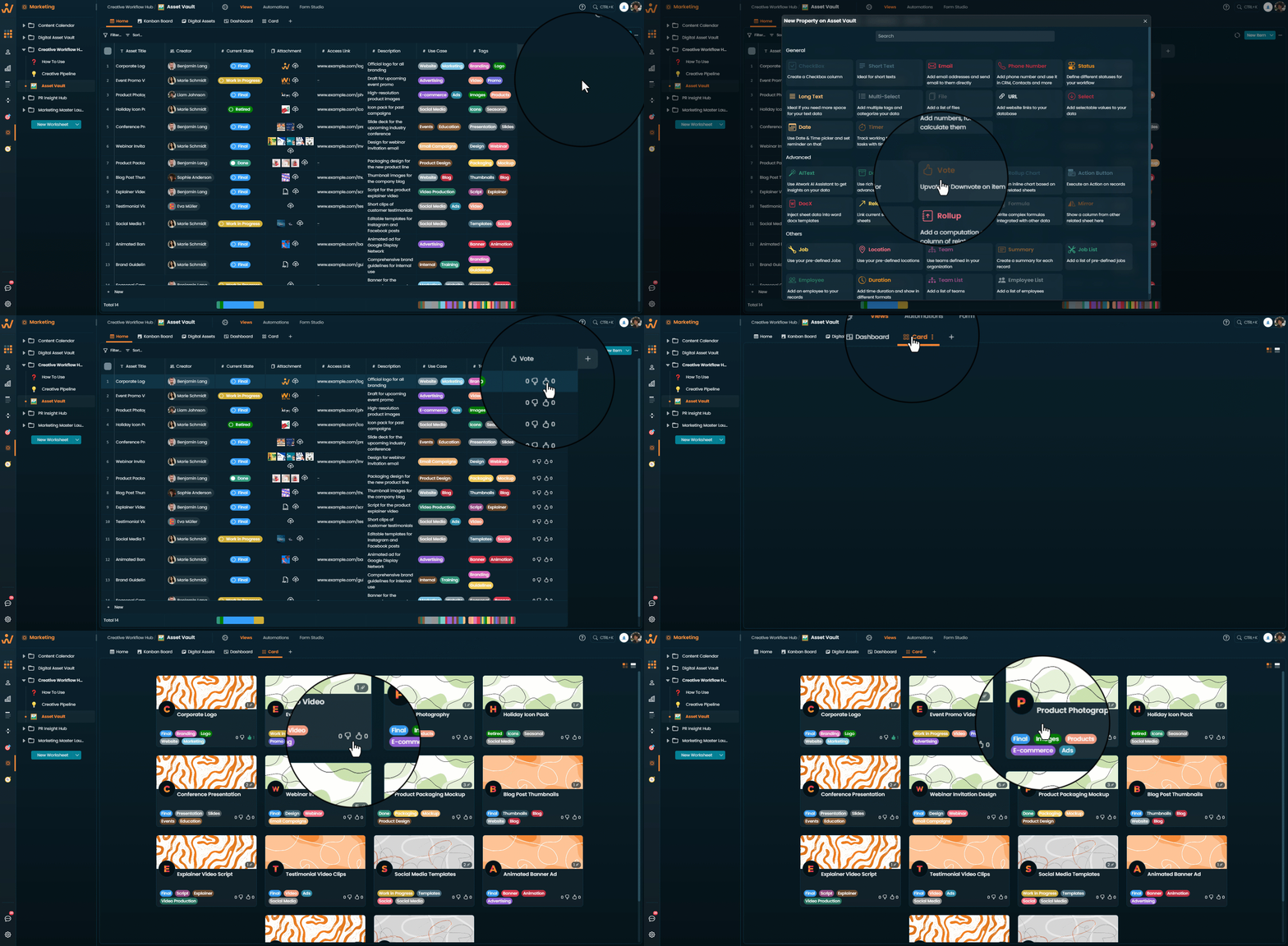
Vote
Lets users upvote or downvote items within a sheet, which is useful for prioritizing and gathering feedback.
Common use cases: prioritizing feature requests in a product backlog, gathering team feedback on ideas, voting on project proposals.
Practical tip: use Vote in decision-making to reach consensus on priorities.
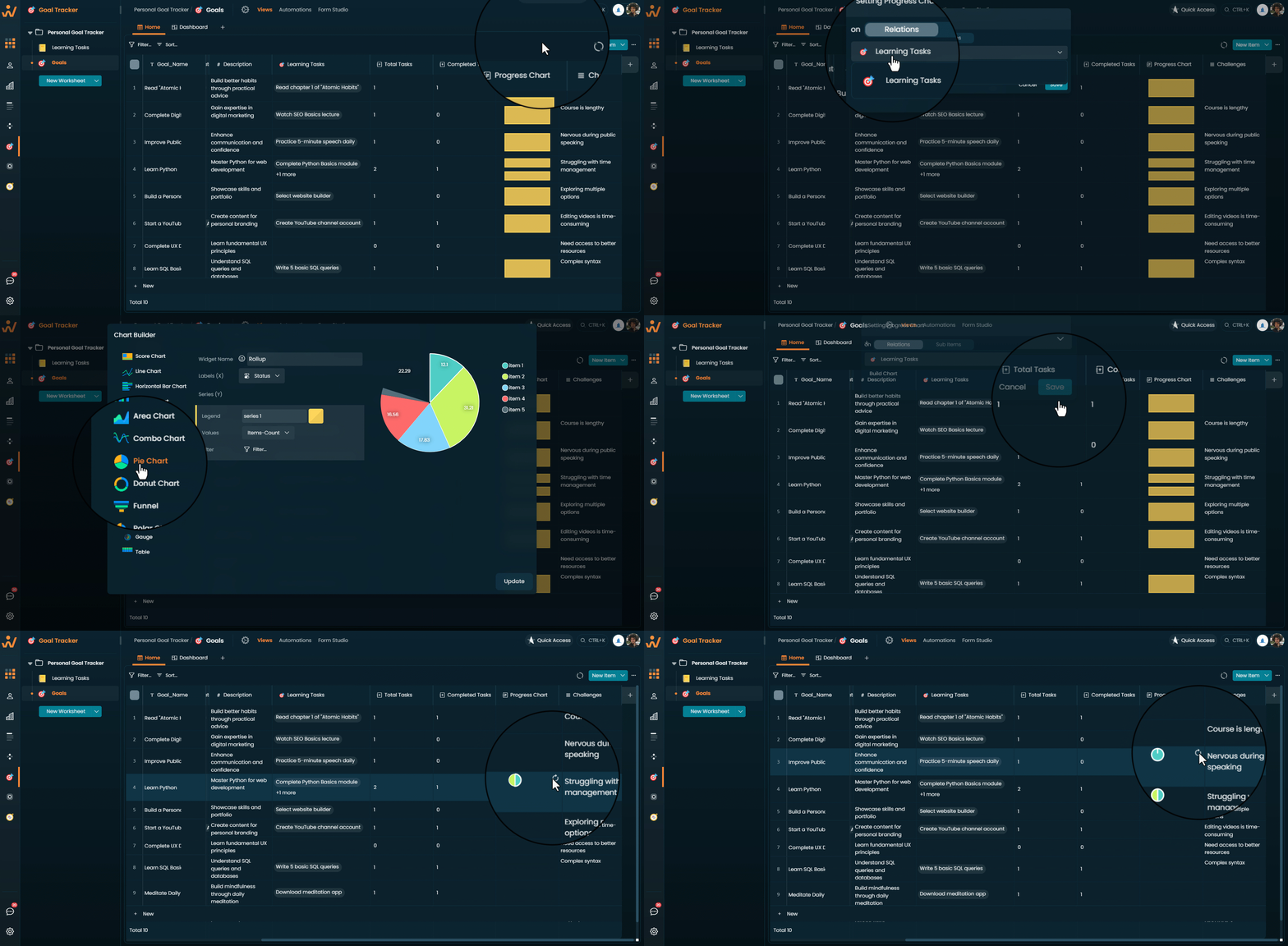
Rollup Chart
Creates an inline chart based on data from related sheets, so you can visualize aggregated data without exporting it.
Practical tip: choose the chart type — bar, line, pie — that best represents your data.
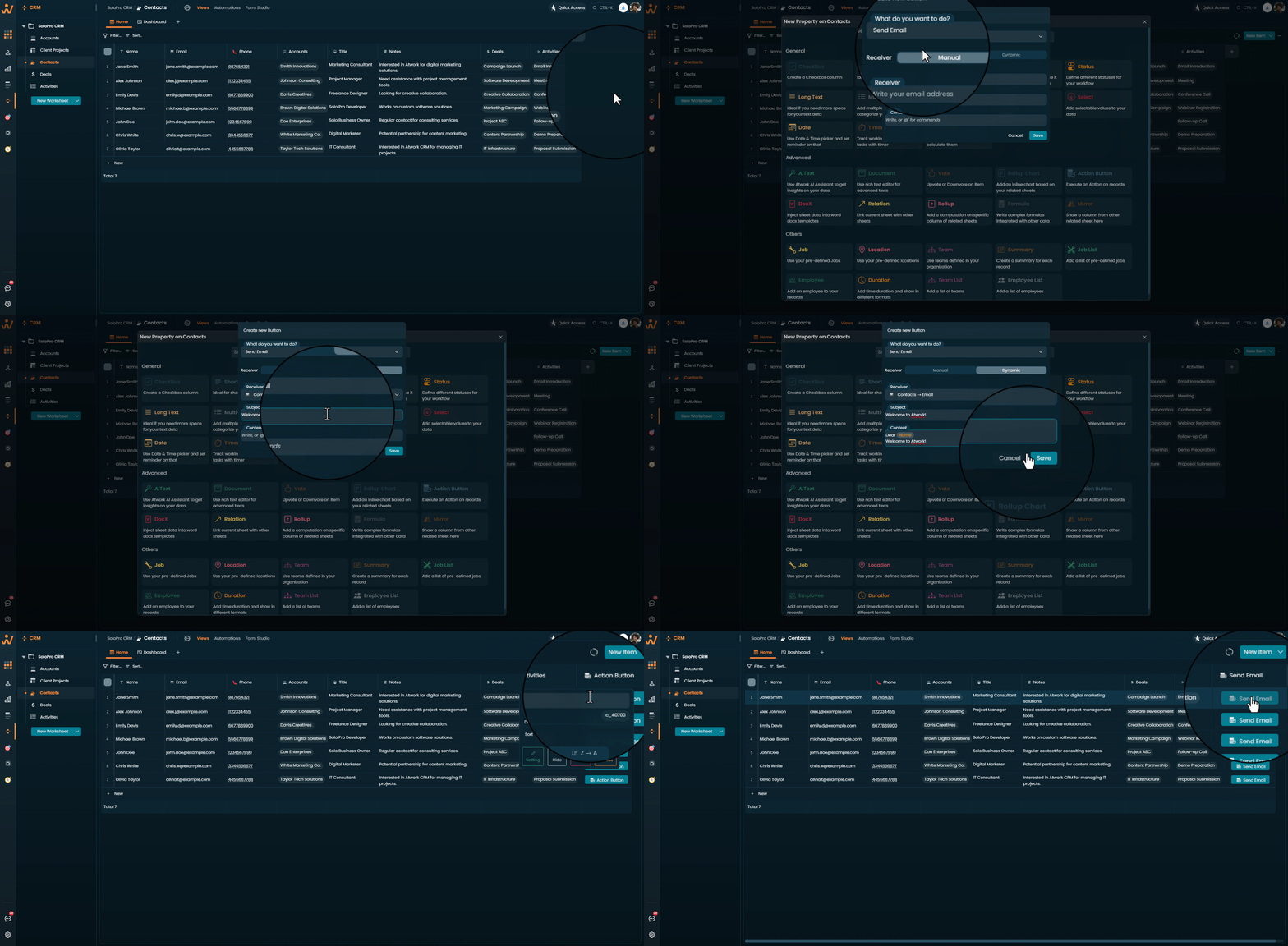
Action Button
Execute predefined actions on records with a single click, including sending emails, updating fields, or triggering workflows.
Common use cases: automated follow-up emails to clients, marking tasks complete in one click, triggering custom workflows or integrations.
Practical tip: use Action Buttons to automate repetitive steps.
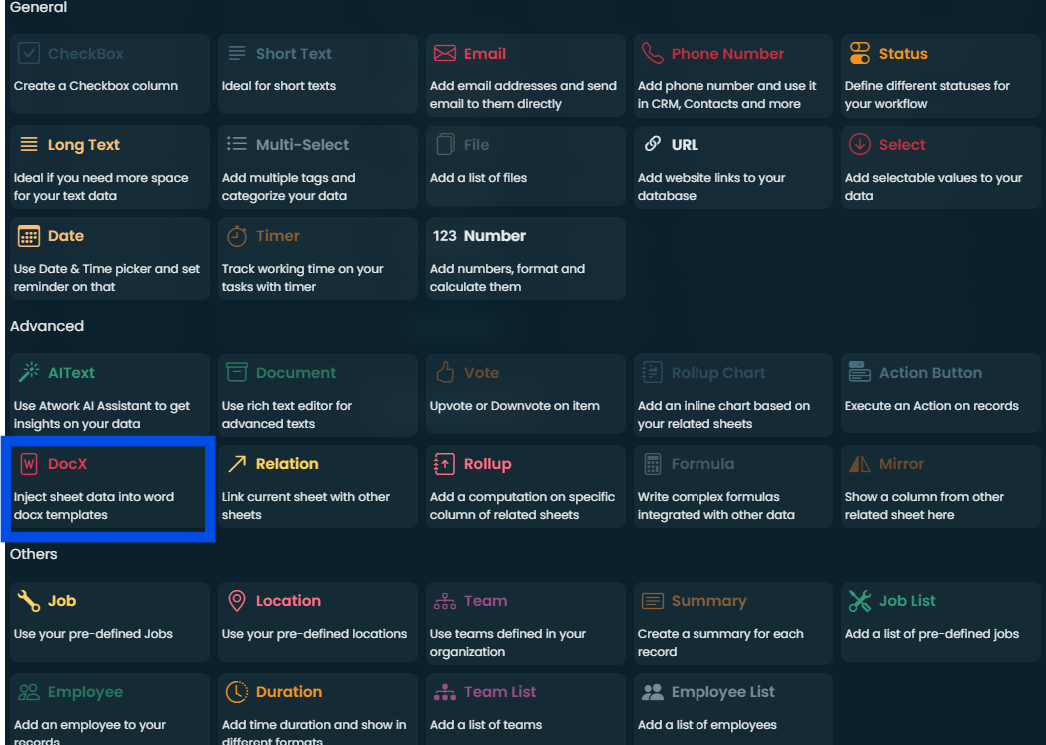
DocX
Inject sheet data directly into pre-designed Word document templates, useful for generating contracts, invoices, or reports with dynamic data.
Common use cases: client contracts with personalized details, automated invoices from project data, detailed reports with live data.
Practical tip: prepare your DocX templates in advance for a smooth data injection process.
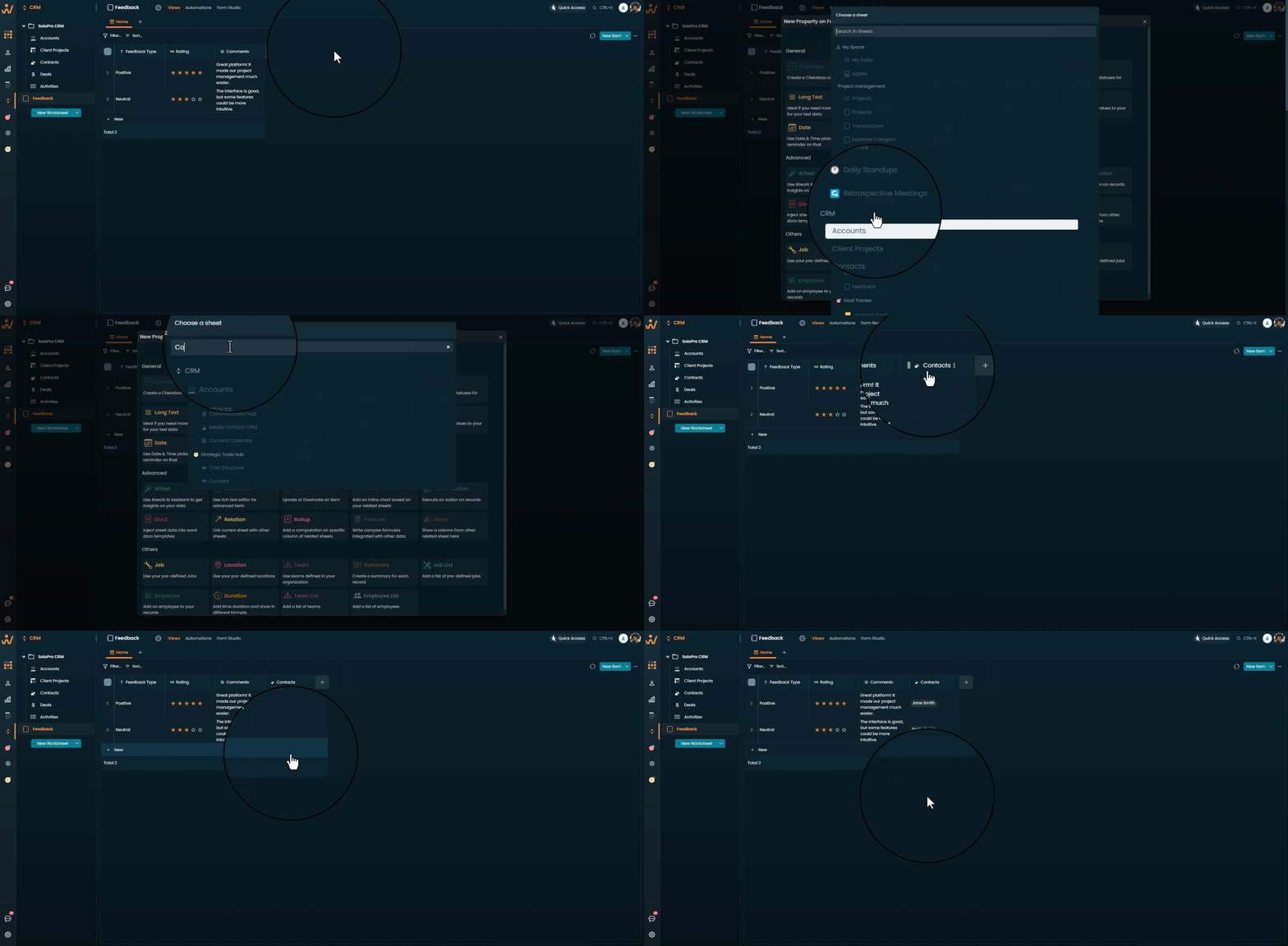
Relation
Links your current sheet with other sheets, creating a relational database and letting you pull related data into a single view.
Common use cases: linking customers to their orders, connecting projects to assigned team members, associating tasks with milestones.
Practical tip: use Relation columns to reduce duplication and improve consistency across sheets.
Rollup
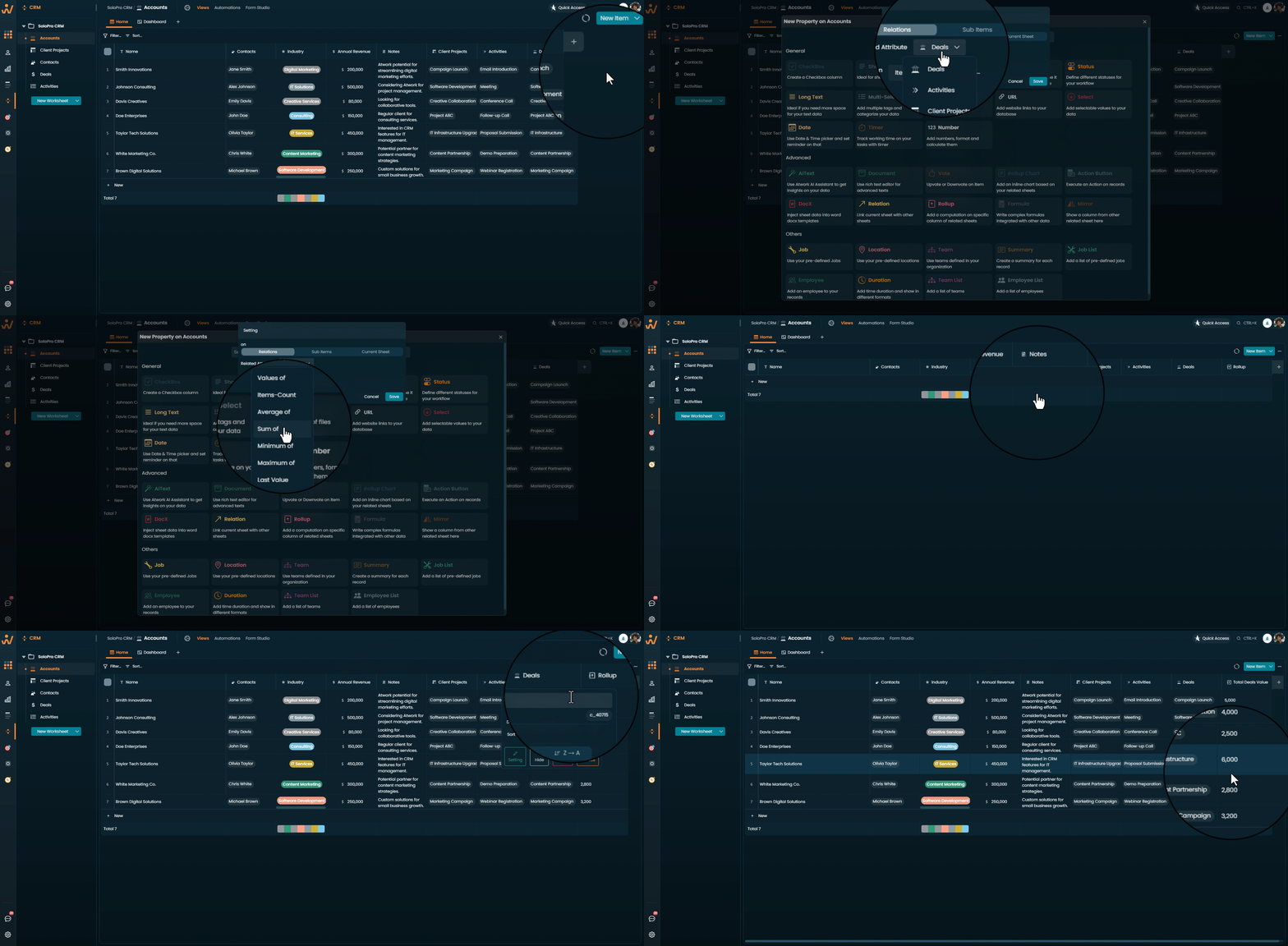
Perform calculations or aggregations on columns from related sheets, ideal for summarizing data across multiple entries.
Common use cases: total sales from related orders, hours worked across projects, aggregated feedback scores.
Practical tip: use Rollup together with Relation to pull and calculate data from other sheets automatically.
Formula
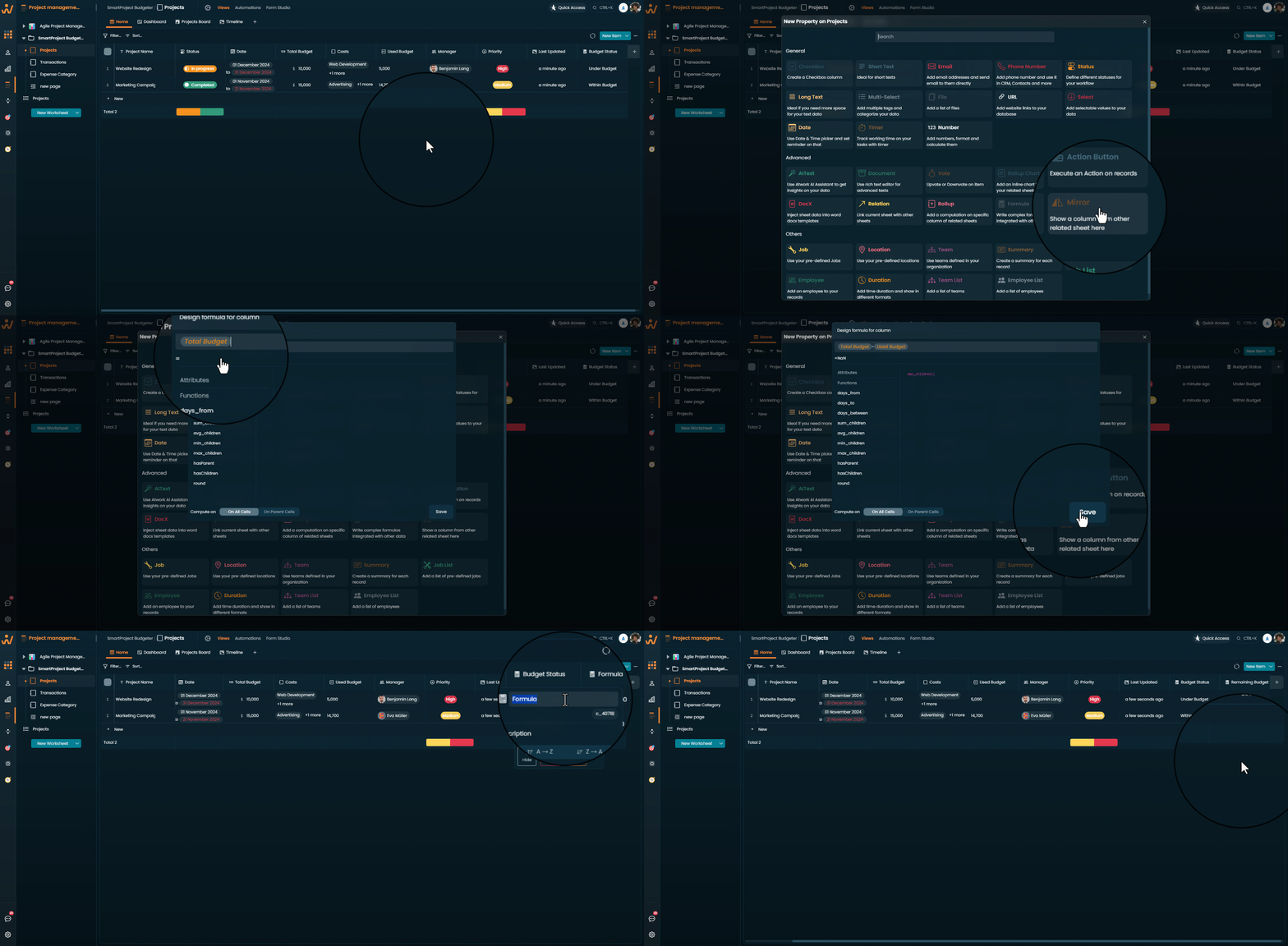
Write formulas that manipulate data from other columns, with support for mathematical, logical, and text-based functions.
Common use cases: calculating total project costs, generating deadlines from start dates, conditional logic for task priorities.
Practical tip: use built-in functions and operators to keep formulas readable.
Mirror
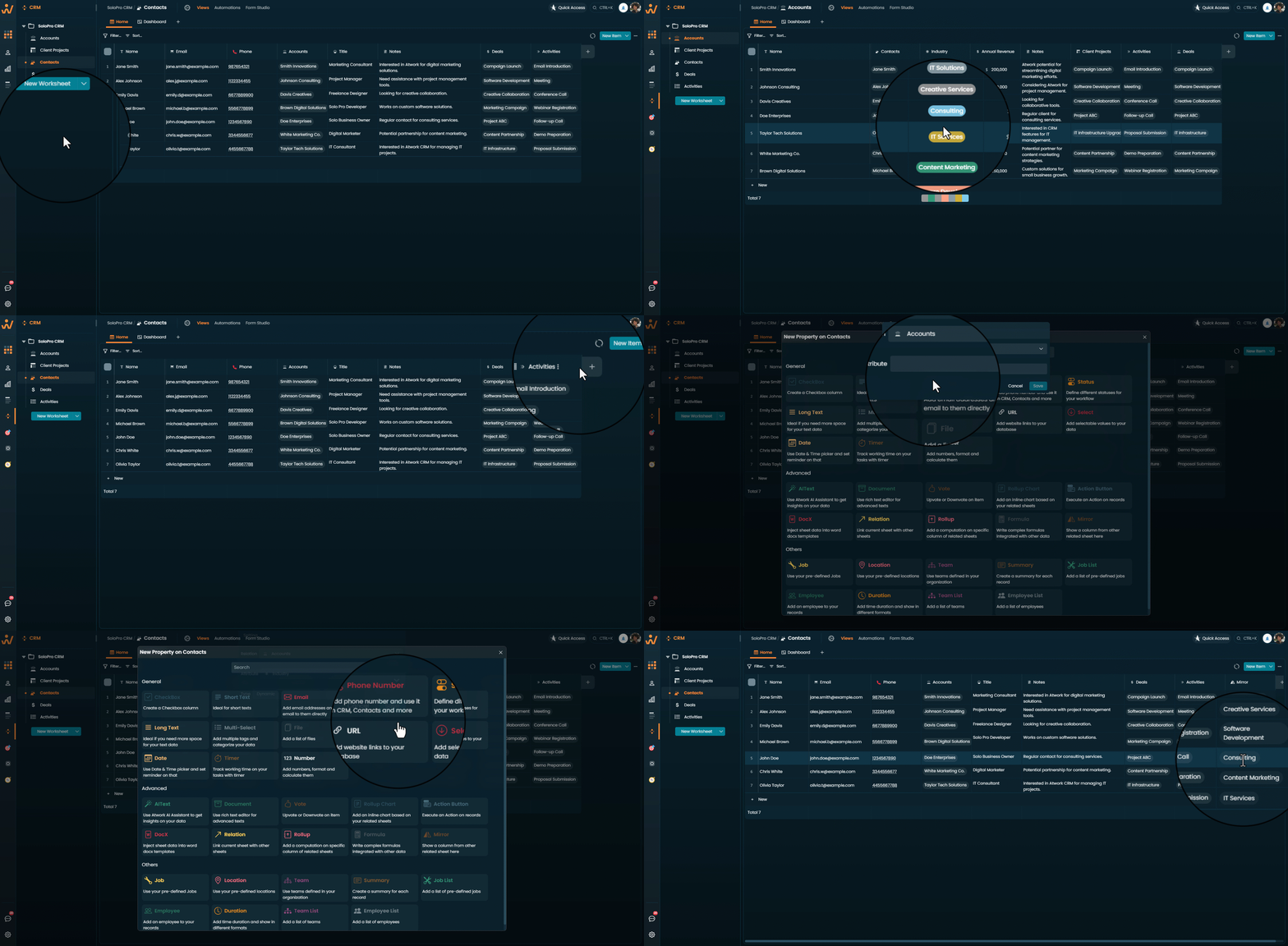
Displays a column from a related sheet inside your current sheet, so you can see important data without duplicating it.
Common use cases: showing customer names from a linked CRM sheet, displaying project status from a related sheet, referencing employee contact details from an HR sheet.
Practical tip: use Mirror to keep data consistent and always up to date across sheets.
Other Data Types
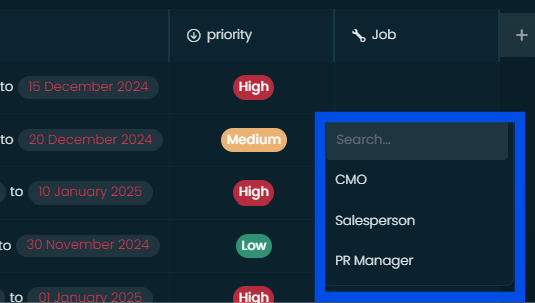
Job
Select pre-defined job titles from your organization's directory and assign them to records, which helps with delegation and role management.
Common use cases: assigning tasks by job role, tracking the role responsible for a project phase, organizing employee responsibilities.
Location
Select pre-defined locations from your organization's list, to track where tasks, assets, or projects are handled.
Common use cases: assigning tasks to specific offices or branches, managing multi-location projects.
Practical tip: use Location to make sure every item is associated with the right physical or virtual place.
Team
Assign tasks or records to specific teams in your organization, so the right group owns the work.
Common use cases: assigning tasks to project teams, tracking team-specific responsibilities.
Practical tip: combine Team with Employee List for more granular assignments.
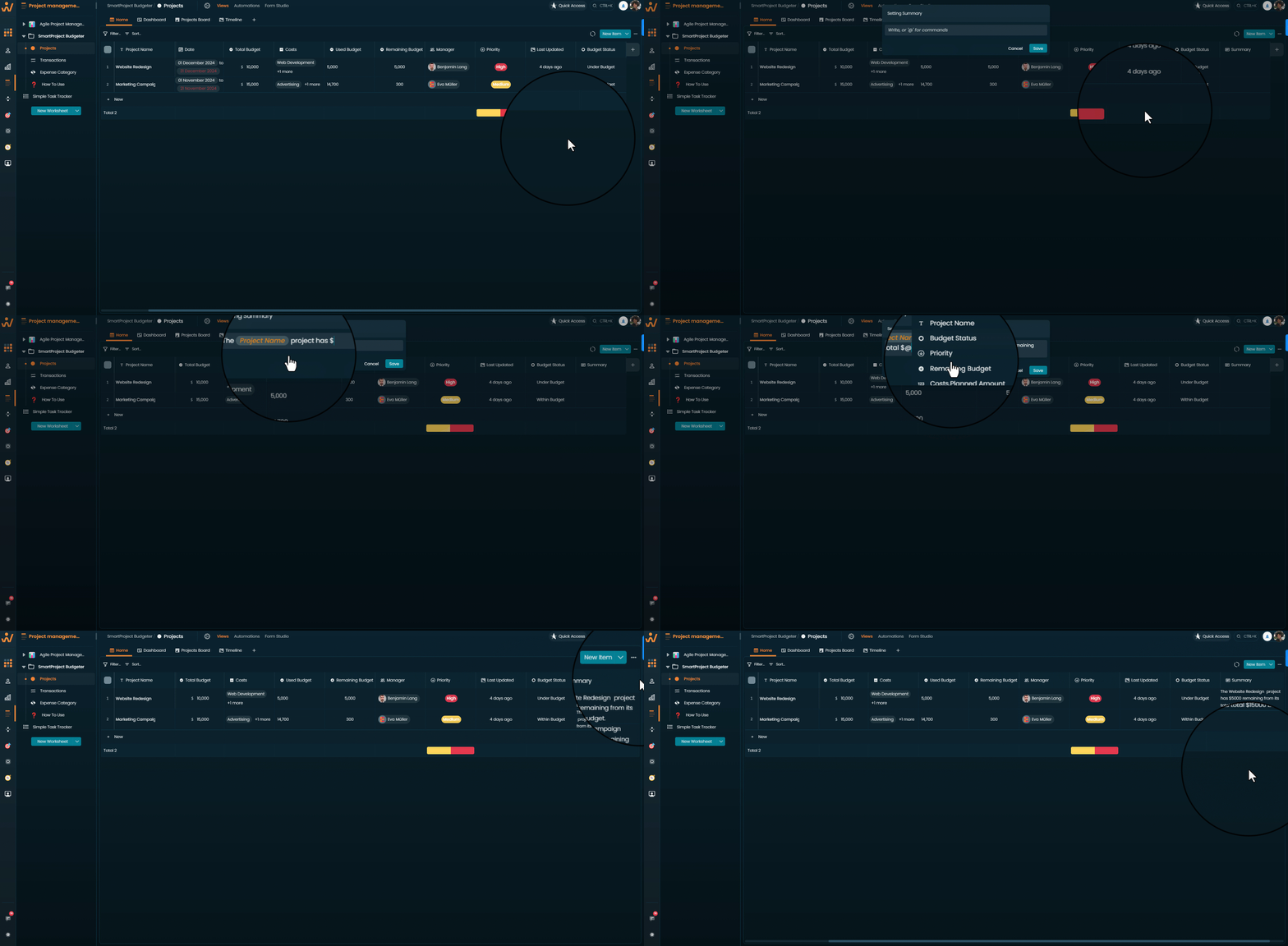
Summary
Automatically generates a brief overview of each record, highlighting the most important details. It can be customized to pull from specific columns.
Common use cases: a quick project status summary, a brief task overview for team members.
Practical tip: use Summary for high-level visibility without opening detailed views.
Job List
Add multiple pre-defined job titles to a single record, useful for assigning various roles to a task or project.
Common use cases: assigning several roles to a complex project, tracking responsibilities across departments, managing roles in HR workflows.
Practical tip: use Job List to make sure each project has the right mix of roles assigned.
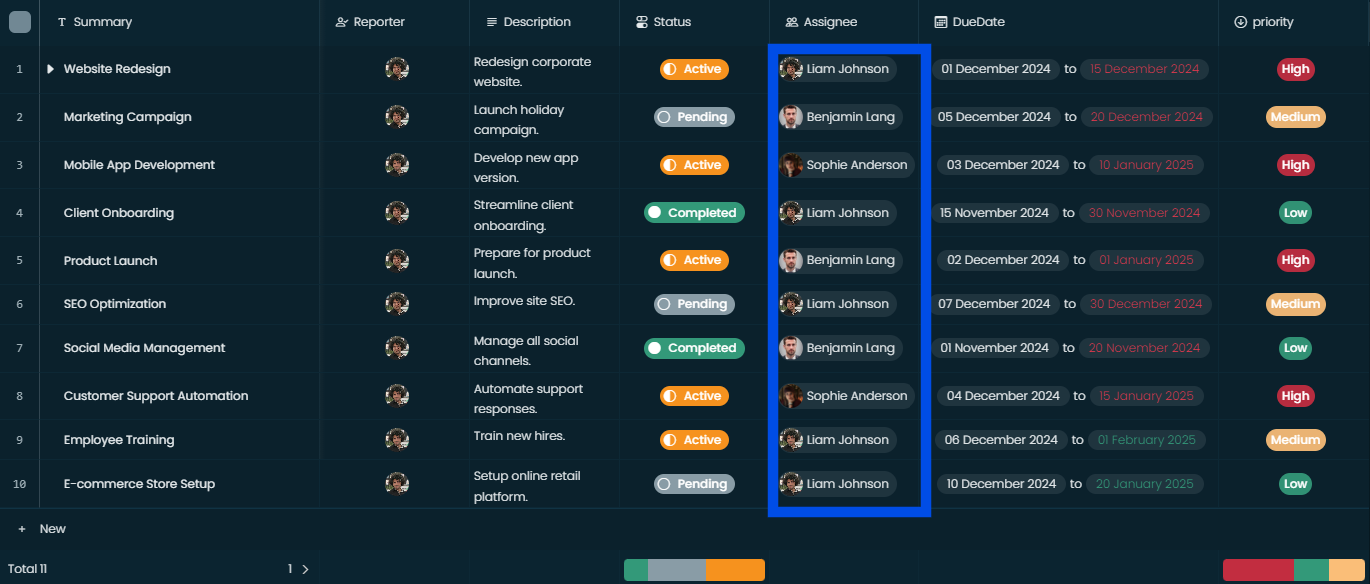
Employee
Assign a specific person to a task, record, or project, for tracking individual responsibility.
Common use cases: assigning tasks to employees, managing employee-specific project assignments, tracking who owns a task.
Practical tip: combine this with Duration to track how long someone spends on a task.
Duration
Tracks time durations and displays them in formats such as hours, days, or weeks — essential for time tracking and project management.
Common use cases: measuring time taken to complete a task, tracking the duration of project phases, estimating completion times.
Practical tip: use Duration with Timer for real-time tracking.
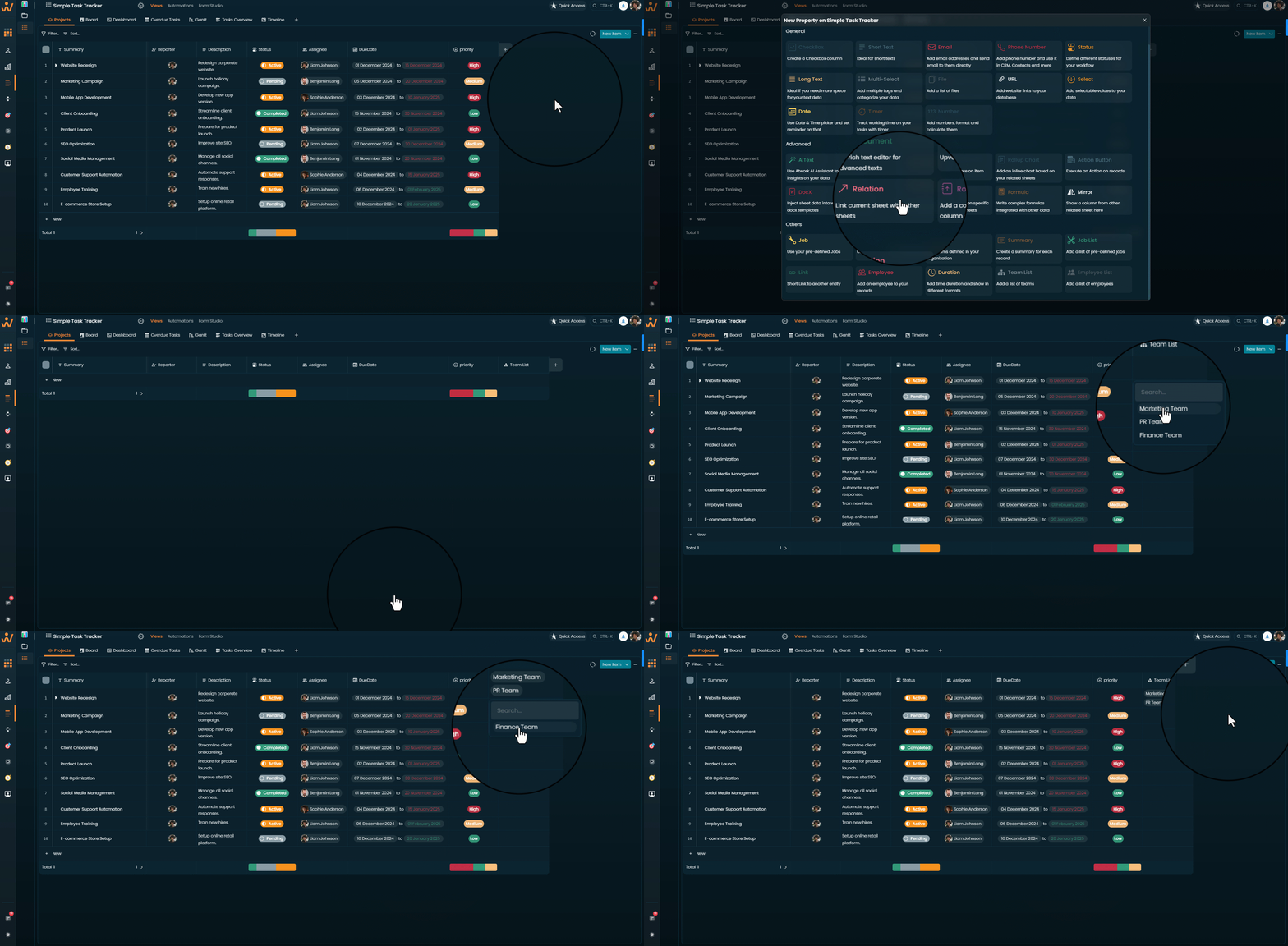
Team List
Assign multiple teams to a single record, which helps with cross-team collaboration and distributing work across departments.
Common use cases: assigning a project to multiple teams, managing tasks that need input from several departments.
Practical tip: combine Team List with Vote to let teams prioritize collaboratively.
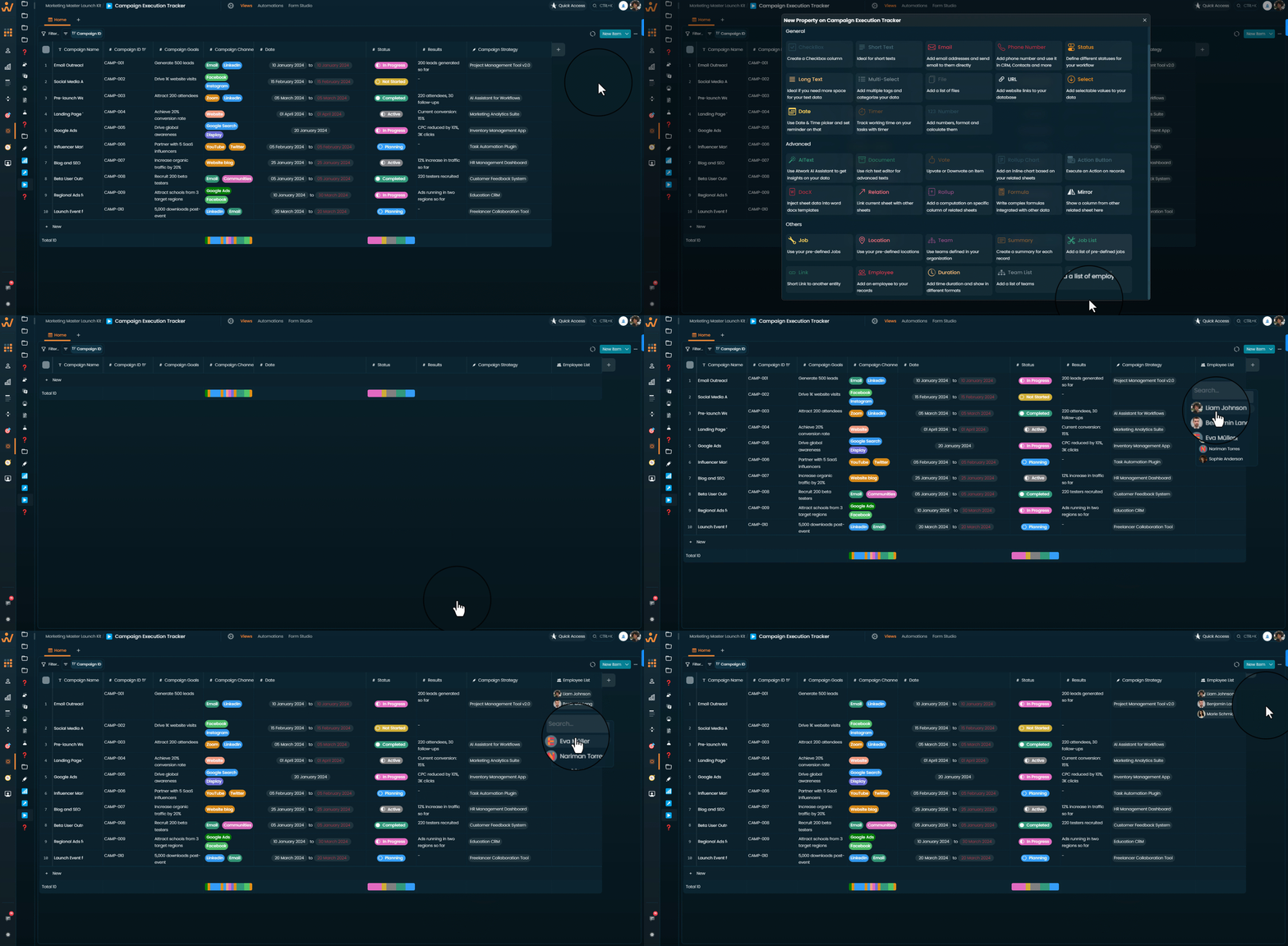
Employee List
Assign multiple people to a single record, ideal for tasks or projects that need collaboration.
Common use cases: assigning project tasks to several employees, tracking contributions to a project, managing collaborative work across departments.
Final Summary
Atwork's data types are designed to offer flexibility and precision for managing workflows, data organization, and collaboration across teams. Here's how to make the most of them:
- General data types — everyday tracking: text, dates, numbers and file management. These are the backbone of any organized database.
- Advanced data types — AI, formulas, relational data and automation, for deeper insight and more complex workflows.
- Other data types — organizational resources: roles, teams and time durations.
Key takeaways
- Choose the right data type for each piece of information to keep your workflow organized.
- Combine types — Relation, Rollup and Mirror together — for advanced functionality and interconnected data.
- Customize your database to fit your own processes.
If you need more guidance, see the help sections for each data type or contact support.