How to save a file to a File List field from a workflow
Add the Save file step to a workflow to put a file into a File List field on a row. The file can come from a link, text from an earlier step, base64 content, a Telegram photo or document, an email's attachments, or files already in Atwork. Owners, admins and members can build it. Workflows come with the Pro plan and up (see pricing).
Before you start
- Your workspace is on Pro, Business or Enterprise. On Free you can build and save the workflow, but publishing it opens Automations need Pro. A workflow that starts from a Telegram message needs Business or higher, like every trigger from a connected app.
- You're an owner, admin or member of the workspace; guests can't build workflows. You can change the workflows you created, and owners and admins can change any workflow.
- The sheet the file goes to has a File List field.
Add the Save file step
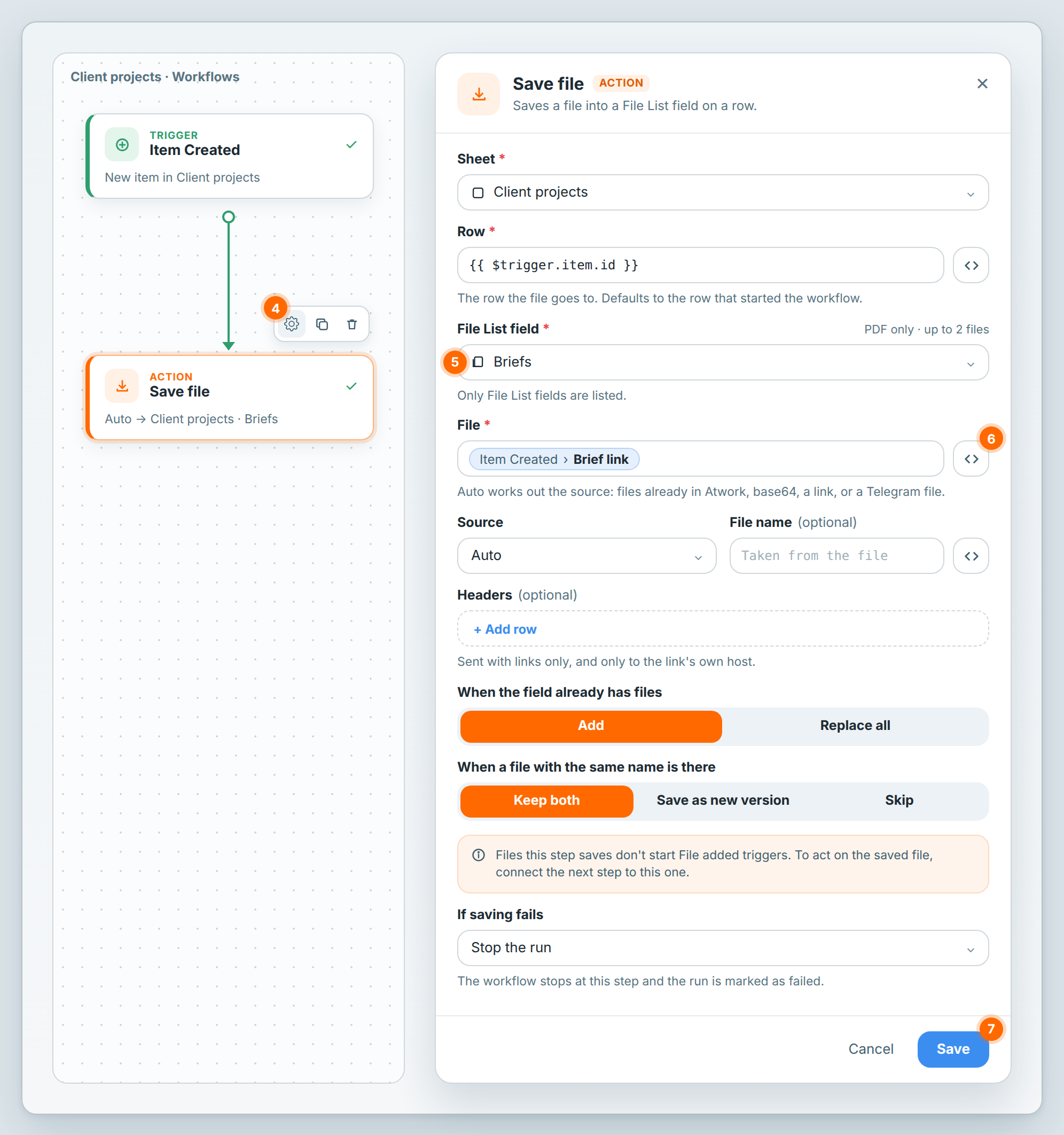
- Open the sheet and choose Workflows at the top.
- Open the workflow, or choose Start from scratch and pick a trigger in the Node library, such as Item Created.
- In the Node library, under Actions, choose Save file. As the first step after the trigger, it connects to the trigger by itself.
- Choose the step, then Configure, the gear above it.
- In File List field, pick the field. Only File List fields are listed.
- In File, paste a link, or choose Insert variable, the button at the end of the field, and pick the file from an earlier step, such as a URL field on the row.
- Choose Save.
- Choose Publish at the top of the builder, or Publish changes on a workflow that is already live.
Each run now adds the file to the row's File List field. When the field takes only some files, its limit shows beside File List field, such as PDF only · up to 2 files, and a file outside that limit fails the step.
Save to another row or sheet
Sheet starts on the sheet you're in, and Row on the row that started the workflow. To save somewhere else, pick the sheet in Sheet, then choose Insert variable beside Row and pick that row's ID from an earlier step.
Pick where the file comes from
Source is Auto by default. Auto recognises a link, base64 that starts with data:, a Telegram file and files already in Atwork. Pick a source when Auto can't tell what the value is, such as for text.
| Source | What to put in File | For example |
|---|---|---|
| Link | A web address that starts with http:// or https:// | A URL field on the row, or a link an HTTP Request step returned |
| Text | Any text | An Agent step's answer, saved as summary.md |
| Base64 | Base64 content, with or without data: in front | An image another app sent as base64 |
| Telegram file | The file ID from the Telegram trigger | A photo or document someone sent your bot |
| Atwork file | Files already in your workspace | The Inbound email trigger's attachments, or another row's File List field |
Telegram file works only in a workflow that starts with a Telegram trigger, and saves files sent to that bot. Telegram lets bots download files of up to 20 MB. To connect a bot, see Connect Slack or Telegram.
Name the file
File name is optional. Without it, a file from a link keeps the name its server gives it, or the last part of the link. A Telegram document keeps its own name. The step saves text as file.txt, and base64 as file with its type's extension, such as file.png.
Type a name, such as summary.md, to set it. For text, the extension sets the file's type. When the step saves several files at once, such as all of an email's attachments, each keeps its own name.
Send headers with a link
If a link needs a key or a token, add it under Headers: choose Add row, then type the header's name and value. The step sends headers only to the link's own host, never to a site the link redirects to. Headers shows only when Source is Auto or Link.
Choose what happens to files already there
When the field already has files:
- Add (the default): the new file joins the files already in the field.
- Replace all: the step removes the files already in the field, and only the new files stay.
When a file with the same name is there:
- Keep both (the default): both files stay, with the same name.
- Save as new version: the new file becomes the next version of the old one. Earlier versions stay in the file's version history.
- Skip: the old file stays, and the step doesn't save the new one.
Use the saved file in later steps
Files this step saves don't start File added triggers, so a workflow can't start itself again by saving a file. To do more with the saved file, connect the next step to Save file. Its output holds the row, the field, and each saved file's name, type and size.
If saving fails
In If saving fails, choose what happens to a row whose file can't be saved: Stop the run (the default), Skip failed items, or Error branch, which sends it down a separate path with the reason. To see why a run failed, open the workflow's Executions, the history icon in the builder's toolbar.
Common reasons:
- Couldn't tell what file this is. Pick a Source. Auto didn't recognise the value. Pick the Source.
- The field takes only some file types, or a set number of files. The message names the field and its limit.
- This link opened a web page, not a file. The link leads to a page, such as a sign-in page or a Google Drive or Dropbox share page, instead of the file itself.
- This link points to an internal address. The step refuses links to private or local network addresses.
- The file is too big. A link can bring a file of up to 300 MB, or 25 MB when its server doesn't say how big the file is. Text and base64 can be up to 10 MB.
- One step saves at most 20 files to a row.
Good to know
- The workflow saves files with its author's access.
- Email to this sheet already puts an email's attachments in the sheet's first File List field. Use Save file to put them in another field or on another row. See Email to this sheet.
- The step adds files from an email or another row as they are, without a second copy.
- If the step tries again after an error, it doesn't add the same file twice.
Related: Automation actions · Email to this sheet · Test and debug an automation · How to preview a file without downloading it